How to Add an Image to a PDF
Adding an image to a PDF is easier than you might think, whether you’re using online tools or desktop software. Whether you're working on a document for work, school, or personal use, this guide will show you how to quickly and efficiently add an image to your PDF file. We’ll also cover tips on fixing common issues and editing images after they’re added.
Ways to Add an Image to a PDF
There are several ways to add an image to a PDF, each with its own advantages. You can use online tools for quick edits, desktop software for more advanced features, or dedicated PDF editors for precise control. Let’s explore each method and how it can benefit you.
Add an Image to a PDF with an Online Tool
Online tools are an easy, quick solution when you need to add an image to a PDF without downloading any software. Websites like iLovePDF, Smallpdf, and PDF.net make it super simple to upload your document, insert the image, and download the updated file—all for free in most cases.
Add an Image to a PDF with Desktop Software
If you need more control or have specific formatting needs, desktop software like Adobe Acrobat or Foxit PhantomPDF is the way to go. These programs allow you to edit your PDF more precisely, adjusting image sizes, placement, and even text in the document.
Add an Image to a PDF with a PDF Editor
A dedicated PDF editor is perfect if you're looking to do more than just add an image. PDF editors let you insert images, edit text, and manipulate layouts with ease. If you work with PDFs often, investing in a good PDF editor can save you time and hassle.

Add an Image to a PDF Online
Using an online tool to add an image to a PDF is one of the quickest and simplest ways to get the job done. Here's a step-by-step guide:
Upload the PDF file
Start by uploading the PDF you want to edit. Most online tools allow you to drag and drop the file directly from your computer or cloud storage. It’s usually that easy!
Insert the Image
Once the PDF is uploaded, you can add the image by selecting an "Insert Image" option. From here, browse your computer to find the image you want to insert. After selecting it, you can place it where you’d like within the document. Some tools let you resize the image as well, so it fits better.
Save and Download the Edited PDF
Once the image is in place, make any adjustments necessary (like resizing or repositioning). After that, just save the edited PDF and download it to your device. Most tools let you keep the document in PDF format, but you may have options to save in other formats, too.
Add an Image to a PDF in Desktop Software
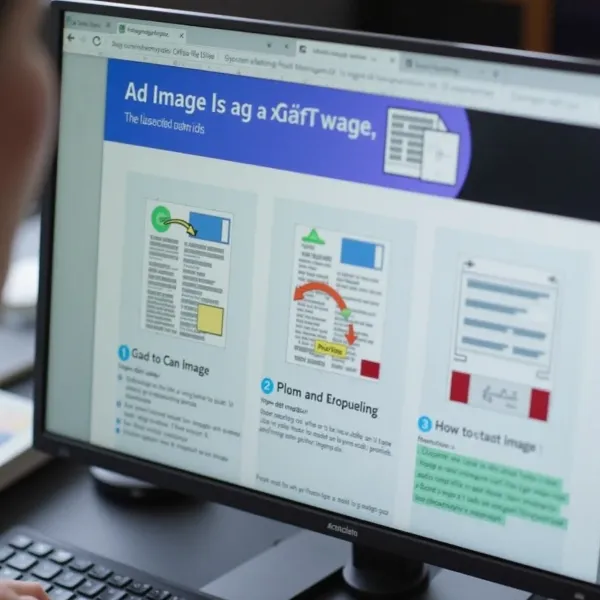
For those who need more flexibility or are working on professional projects, desktop software provides a more robust solution. Here’s how you can add an image using tools like Adobe Acrobat:
Open the PDF in an Editor
First, open the PDF you want to edit in your desktop software, such as Adobe Acrobat or Foxit PhantomPDF. These programs give you complete control over the layout and formatting of your document.
Place the Image on the Page
Once the PDF is open, look for the option to "Insert Image" (often found under the Edit or Tools menu). After selecting the image file, drag it to the part of the document where you want it to appear. You can resize it as necessary to make sure it fits within the page.
Save the File with the New Image
After placing and resizing your image, make sure to save the document. You’ll now have a PDF that includes the image, and you can continue to make any other adjustments or edits you need.
Edit an Image After Adding It to a PDF
Sometimes, after you’ve inserted an image, you might want to make adjustments. Here’s how to do that:
Resize the Image
If your image is too big or too small, most PDF editors let you resize it. Click on the image, and then drag the corners to adjust its size. This ensures the image fits neatly within the page layout.
Move the Image
To reposition the image, click on it and drag it to a new location on the page. You can align it with the text or place it in a specific area to improve the design and readability of your document.
Rotate or Crop the Image
Need to rotate or crop the image? Many PDF editors have these features built-in. You can rotate the image to the right angle, or crop it if you need to remove parts that don’t fit your document.
Tips for Adding an Image to a PDF
To make sure your image looks just right in the PDF, keep these tips in mind:
Use a Clear Image Format
Always use a high-quality image format like PNG or JPEG. These formats are widely supported and maintain high resolution without bloating the file size too much. Using a blurry or low-res image can make your document look unprofessional.
Keep the Image Size Balanced
While it might be tempting to use a high-resolution image, be mindful of the file size. Large images can make the PDF bulky, slowing down downloads and uploads. Aim for an image size that looks good without overloading the file.
Place the Image Where It Fits Best
Think about the layout of your document when placing the image. Ideally, the image should enhance your content without blocking important text or information. Choose a spot where the image complements the document rather than detracts from it.
Problems Adding an Image to a PDF
While it’s generally simple to add images to PDFs, you may run into a few issues. Here are some common problems and their solutions:
The Image Won’t Insert
If the image refuses to insert, it could be due to the file format. Ensure that your image is in a compatible format like JPEG, PNG, or GIF. Additionally, check your internet connection if you’re using an online tool.
The Image Looks Too Large or Too Small
If your image appears the wrong size, it’s easy to resize it. Use your PDF editor’s resizing tool to adjust the image to fit better on the page. Don’t forget to maintain the aspect ratio so the image doesn’t become distorted.
The PDF File Cannot Be Edited
If you can’t edit your PDF, it might be password-protected. In this case, you’ll need to unlock the PDF before you can make any changes. Look for a PDF password remover or contact the document’s creator to get access.
Conclusion
Adding an image to a PDF doesn’t have to be complicated. Whether you're using a free online tool, desktop software, or a dedicated PDF editor, the process is quick and straightforward. With the steps outlined in this guide, you’ll be able to add, resize, and edit images in your PDFs with ease.