How to Add Margins to a PDF
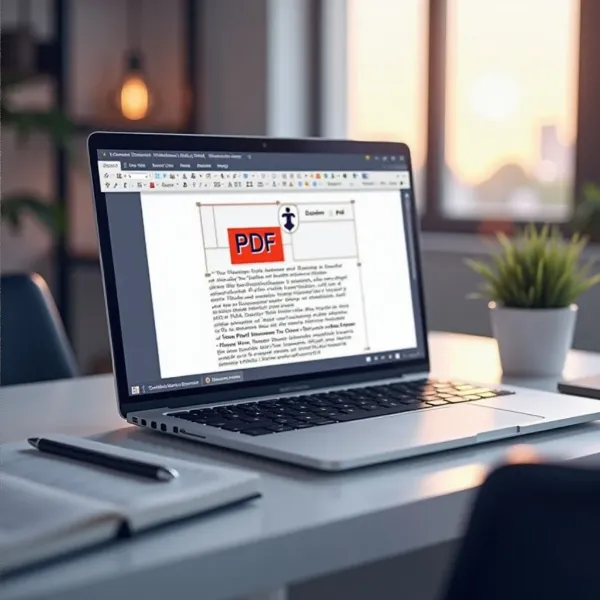
We've all been there — trying to print a PDF, only to discover that the content is too close to the edges of the page or, worse, gets cut off completely. Adding margins to your PDF is an easy fix that can give your document a cleaner, more polished look, whether you're preparing it for printing, leaving space for notes, or just creating some breathing room. In this guide, we'll walk you through how to add margins to a PDF using both online tools and desktop software, along with helpful tips for common issues like content getting cut off.

When to Add Margins to a PDF
Adding margins to a PDF can make a big difference in certain situations. Here are a few common reasons why you might want to adjust the margins of your PDF document.
Add space for notes and comments
Margins are perfect for adding notes or comments to your document, especially if it's a draft or collaborative work. Whether you're reviewing a report or jotting down a few ideas, extra space around the edges helps you make the document more interactive without disturbing the main content.
Add white space for printing
If you plan to print your PDF, margins can help avoid the text or images running off the page. Printers often can't print all the way to the edge, so adding some extra space ensures that your content stays within the printable area, leading to cleaner, more professional prints.
Fix pages that feel too tight
Some PDFs, particularly those that were scanned or have a cramped layout, might feel cluttered. Adding margins gives your content more space to breathe and makes the page look less cramped, improving overall readability.

Add Margins to a PDF Online
If you're looking for a quick and easy way to add margins without installing any software, online tools are your best bet. Here's how you can do it in just a few simple steps.
Upload the PDF
Start by uploading your PDF to an online tool. There are many websites, like Smallpdf, PDF2Go, and ILovePDF, that allow you to upload and edit your PDFs for free or with a premium account. Simply drag your file into the tool's upload area and let it process the document.
Set the margin size
After the PDF is uploaded, look for the margin settings in the tool. You'll usually have the option to set a uniform margin on all sides of the page, or you can customize the margins individually. Many tools let you set specific measurements like 0.5 inches or 1 cm, so you can adjust based on your needs.
Preview and export the file
Before finalizing, preview the changes to make sure everything looks good. Ensure that no content is getting cut off and that the margins are the right size for your document. Once you're satisfied, download the updated PDF to your device.
Add Margins to a PDF in Desktop Software
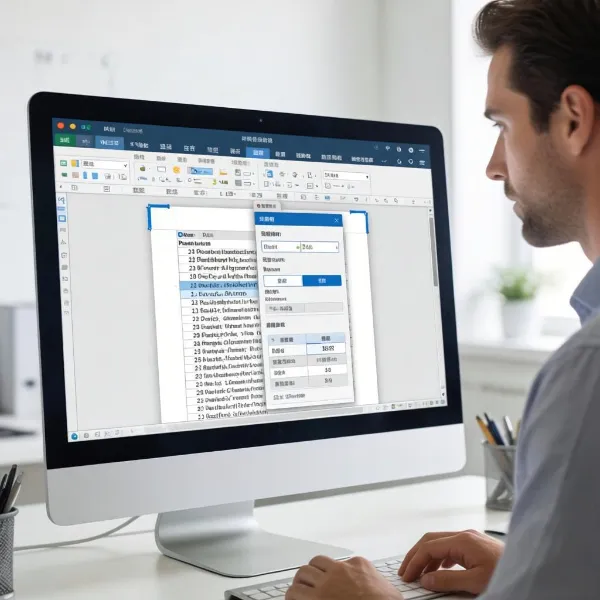
For those who prefer using desktop software, like Adobe Acrobat Pro, Foxit PDF Editor, or PDF-XChange Editor, adding margins is just as easy. Here's a quick guide to help you add margins using desktop tools.
Open the PDF in an editor
Open your PDF in your PDF editor of choice. Most PDF software will have an "Open" option under the "File" menu. Once the file is open, you can start working on the margins.
Apply the new page margins
Look for the "Margins" or "Page Layout" option in the editor. You'll be able to adjust the size of the margins around the page, either uniformly or individually for each side. Some software even lets you apply margin changes to specific pages, so you have flexibility depending on the document's needs.
Save the updated file
Once you've made your changes, don't forget to save the file. You can either overwrite the existing document or save it as a new file, which is often recommended if you want to keep the original version intact.
What to Check Before You Add Margins to a PDF
Before you rush into adding margins, it's essential to check a few things to avoid messing up your document's layout. These simple steps can help ensure your changes look professional and clean.
Check that no content gets cut off
Always preview your document before finalizing it. If your margins are too wide, some of the content could be pushed off the page. Make sure that no text, images, or other elements are being cut off after you add the margins.
Choose the right pages
Sometimes, you only need to add margins to specific pages in your PDF. Be sure to select the correct pages when using an editor that allows this option. Adding margins to the entire document might be unnecessary if you only need to adjust one or two pages.
Leave enough space for annotations
If you plan on adding notes or annotations later, make sure there's enough space in the margins. Adding just a small margin might not leave enough room to write or add comments without interfering with the content on the page.
Problems When You Add Margins to a PDF
Though adding margins is usually a straightforward process, there are a few common problems that can arise. Let's look at these issues and how to solve them.
Content gets cut off
If your PDF content is getting cut off after you add margins, the most likely culprit is that the margins are too wide. Try reducing the margin size a little or adjust the content so it fits better within the new page layout. Always preview the file before you export it to make sure everything looks correct.
The tool does not support margin changes
Not all online or free tools allow you to adjust margins, or they may limit the size of the margins you can add. If you run into this issue, try switching to a different tool that offers more flexibility or consider upgrading to a premium version of the tool.
The PDF is scanned or image-based
Scanned PDFs, or those that are image-based, can be trickier to edit. When you try to add margins, the content might not adjust properly because it's not in an editable text format. In this case, you may need to convert the PDF to an editable format, like Word, then add the margins and convert it back to a PDF.
Conclusion
Adding margins to a PDF can make a huge difference, whether you're printing, annotating, or simply cleaning up the layout. With online tools and desktop software, it's an easy fix that can be done in just a few steps. Just be sure to check the document after making your changes to avoid cutting off any important content and ensure the margins are the right size. This simple adjustment can transform the appearance of your PDF and make it more professional and user-friendly.