How to Add a Shortcut to the Taskbar in Windows 10 and 11
Adding shortcuts to your taskbar makes accessing apps, folders, files, and websites faster and more convenient. Whether you're using Windows 10 or 11, the process is simple and quick. In this guide, we’ll walk you through how to add a shortcut to the taskbar for apps, folders, files, and websites, as well as some troubleshooting tips if things go wrong.
Add an App Shortcut to the Taskbar
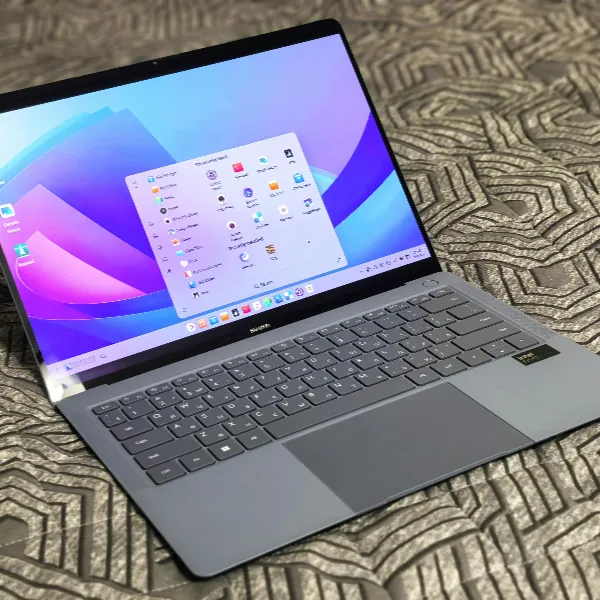
Pinning apps to your taskbar is an easy way to have your most-used applications always at hand. Whether you're using Windows 10 or 11, the steps are quick and simple.
Pin an App from the Start Menu
- Click the Windows icon to open the Start menu.
- Find the app you want to pin, either by scrolling or using the search bar.
- Right-click on the app.
- Select Pin to taskbar from the options. Your app will now be pinned to the taskbar for easy access.
Pin an App from the Desktop
- If the app is already on your desktop, right-click on its shortcut.
- Choose Pin to taskbar.
- Your app shortcut will now be available on your taskbar.
Pin an App While It Is Open
- Open the app you want to pin.
- Once the app is open, right-click on its icon in the taskbar.
- Select Pin to taskbar. Now, even when you close the app, the shortcut stays on the taskbar.

Add a Folder or File Shortcut to the Taskbar
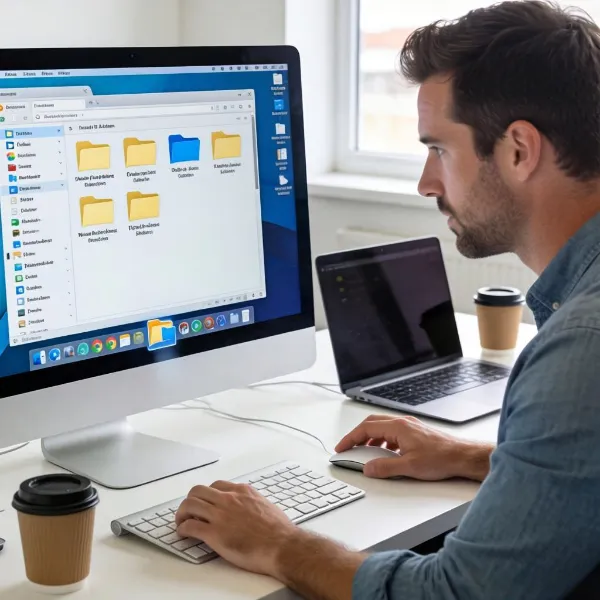
You can also pin folders and files to your taskbar for quicker access. Here's how to do it in just a few steps.
Create a Shortcut First
Before pinning a folder or file, you'll need to create a shortcut:
- Right-click on the folder or file.
- Choose Create shortcut from the menu.
- The shortcut will appear on your desktop.
Pin the Shortcut to the Taskbar
- Right-click on the shortcut you just created.
- Choose Pin to taskbar.
- The shortcut will now appear in your taskbar for easy access.
Check That the Shortcut Opens Correctly
After pinning the shortcut, it’s always a good idea to double-check:
- Click the pinned shortcut on the taskbar.
- Ensure that it opens the correct folder or file. If it doesn’t, delete the shortcut and try again.
Add a Website Shortcut to the Taskbar
Pinning a website to your taskbar lets you open it instantly, just like an app. It’s a handy way to access your favorite websites directly.
Create the Site Shortcut in Your Browser
- Open your preferred browser (such as Chrome, Edge, or Firefox).
- Go to the website you want to pin.
- In Chrome, click the three-dot menu in the top-right corner.
- Select More tools > Create shortcut.
- Name the shortcut and check the box Open as window for an app-like experience.
- Click Create.
Pin the Website Shortcut to the Taskbar
Once the shortcut is created:
- Go to your desktop and right-click the shortcut.
- Select Pin to taskbar. Your website is now pinned to the taskbar.
Test the Pinned Website
- Click on the pinned website icon in your taskbar.
- The website should open in its own window. If not, check your browser settings to make sure it’s opening as expected.
Remove a Shortcut from the Taskbar
If you need to clean up your taskbar or remove a shortcut, it’s a quick process.
Unpin an App Shortcut
- Right-click on the app shortcut in your taskbar.
- Choose Unpin from taskbar. The app will be removed from your taskbar.
Unpin a Folder or File Shortcut
- Right-click the folder or file shortcut on the taskbar.
- Select Unpin from taskbar to remove it.
Unpin a Website Shortcut
- Right-click on the pinned website shortcut.
- Select Unpin from taskbar to remove it.
Problems Adding a Shortcut to the Taskbar
Sometimes, adding shortcuts to your taskbar can be tricky. If you're running into problems, here are a few common issues and solutions.
The Pin to Taskbar Option Is Missing
If you don’t see the Pin to taskbar option:
- Try restarting your computer.
- Check for Windows updates.
- Make sure the app, file, or website you’re trying to pin is correctly installed or open.
The Shortcut Will Not Stay Pinned
If your shortcut keeps unpinning itself:
- Check for Windows updates to make sure you’re using the latest version.
- Make sure the app or file is still available and linked correctly.
The Pinned Shortcut Opens the Wrong Item
If the pinned shortcut is opening the wrong app or file:
- Unpin the shortcut and try creating a new one.
- Double-check the target app or file to make sure it's correctly linked.
Conclusion
Adding a shortcut to the taskbar in Windows 10 and 11 is a great way to boost productivity by giving you faster access to apps, folders, files, and websites you use most. By following the steps above, you can customize your taskbar to suit your needs and make your computer use more efficient. If you run into any issues, try the troubleshooting tips we’ve provided to help you resolve them.