Gmail Strikethrough Shortcut
Introduction: The Gmail strikethrough shortcut is a neat and simple feature that helps you make quick edits or highlight changes in your emails. Whether you're revising a draft or updating information, this tool makes text modifications easy and fast. In this guide, we'll walk you through how to use the Gmail strikethrough shortcut on both Windows and Mac, explore other methods of applying strikethrough, and offer tips on how to use it effectively for your emails.
Gmail Strikethrough Shortcut on Desktop
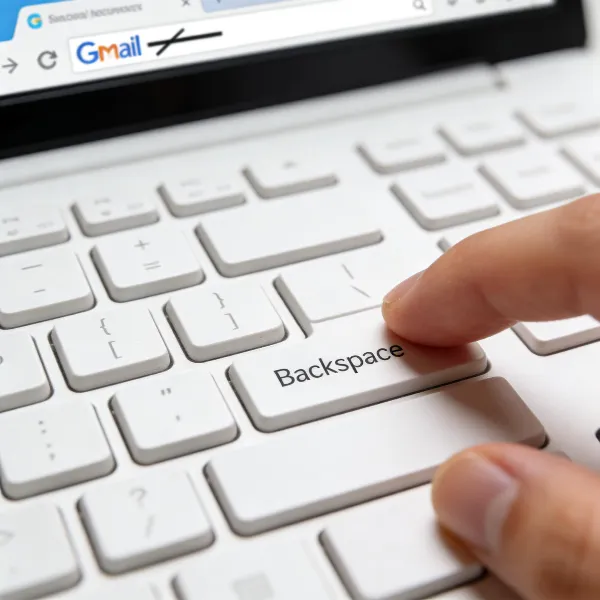
Using the Gmail strikethrough shortcut on desktop is simple and convenient. Here's how to do it on both Windows and Mac devices.
Use the Gmail Strikethrough Shortcut on Windows
On a Windows PC, the Gmail strikethrough shortcut is Alt + Shift + 5. This quick combination strikes through selected text, saving you time and effort.
- Why it’s helpful: This shortcut is a great time-saver, especially for those who don’t want to interrupt their workflow to navigate through menus or the toolbar.
- Perfect for edits: If you're working on an email with multiple revisions, the shortcut lets you quickly cross out old information without deleting it entirely, making it clear that changes were made.
Use the Gmail Strikethrough Shortcut on Mac
For Mac users, the Gmail strikethrough shortcut is Command + Shift + X. It’s just as easy to use as the Windows shortcut, offering the same fast text editing.
Mac-specific tip: Mac shortcuts are generally easy to remember, and this one is no exception. If you're already used to using Command and Shift for other functions, this shortcut will feel familiar.
Streamline your editing: When you need to make quick changes in your email, this shortcut ensures you don’t have to slow down your writing process.
Other Ways to Use Strikethrough in Gmail
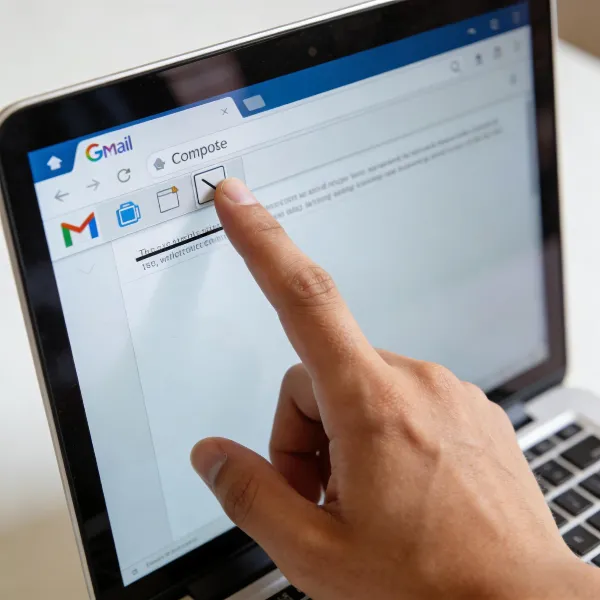
If you prefer not to rely on keyboard shortcuts, there are other ways to apply the strikethrough effect in Gmail, both through the formatting toolbar and menu options.
Open the Formatting Toolbar
You can apply strikethrough using Gmail's formatting toolbar. Here’s how:
- Start composing an email.
- Highlight the text you want to strike through.
- Click the Formatting toolbar icon at the bottom of the email compose window.
- Select the strikethrough button.
- Visually intuitive: For those who prefer a more hands-on approach, the formatting toolbar gives you instant access to strikethrough and other formatting options.
- Great for beginners: This method is ideal for anyone who’s new to Gmail or formatting emails, as it allows you to see what your text looks like before sending it.
Apply Strikethrough from the Menu
Another simple method is using the context menu:
- Highlight the text you want to strikethrough.
- Right-click to open the context menu.
- Select Strikethrough from the options.
- Quick access: If you're already in the habit of right-clicking for fast actions, this is a perfect shortcut for applying strikethrough without leaving the compose window.
- Easy and efficient: It's a quick, no-fuss way to add strikethrough when you're not in the mood to use keyboard shortcuts.
Check the Result Before Sending
Before hitting send, take a moment to check that your strikethrough appears as expected. Sometimes, formatting might not show up correctly in the email draft or preview.
- Preview for perfection: By checking your email, you make sure the strikethrough effect is exactly how you want it, and you won’t send an email with formatting errors.
- Test on different devices: Keep in mind that the recipient’s email client may not always support strikethrough formatting. Double-check how your email looks across different platforms before sending.
Gmail Strikethrough on Mobile
Unfortunately, the Gmail app doesn’t directly support strikethrough on mobile devices, but there are still workarounds.
Check if the Gmail App Supports Strikethrough
As of now, the Gmail app for mobile devices doesn’t have native support for strikethrough. This limitation can be frustrating for users who want to edit text on the go.
- Limited functionality: On mobile, you won't find the strikethrough option directly within the app. But there are ways to work around this if needed.
- Alternatives: For now, you may have to resort to other text effects like dashes or use emojis to simulate strikethrough on mobile.
Use a Mobile Browser as a Workaround
One solution is to access Gmail through a browser on your mobile device. By switching to the desktop version of Gmail, you can use the full range of Gmail’s formatting options, including strikethrough.
- How to do it: Open Gmail in a browser on your mobile, then switch to the desktop version to access the full toolbar, including strikethrough.
- Works for urgent edits: This workaround is helpful when you need to make quick changes to an email while on the move.
Edit the Text on Desktop if Needed
If the mobile app doesn’t cut it, you can always finish drafting your email on a desktop. Gmail’s sync feature ensures your drafts are available on any device.
- Switch between devices: Start your draft on your phone and finish it on a desktop when you need more formatting control, including strikethrough.
- Convenient editing: Gmail automatically saves your progress, so you won’t lose any text when switching from mobile to desktop.
Problems with the Gmail Strikethrough Shortcut
While the Gmail strikethrough shortcut is handy, it may occasionally run into some issues. Here are a few common problems and solutions.
The Shortcut Does Not Respond
If the shortcut isn’t working, there could be a couple of reasons why.
- Possible causes: Make sure you’re using the correct shortcut for your operating system. Additionally, check if there are any conflicts with your browser’s settings or Gmail’s version.
- Quick fix: Refresh Gmail, or try restarting your browser to resolve minor glitches. If the issue persists, updating your browser or Gmail might solve the problem.
The Formatting Toolbar is Missing
If you can't see the formatting toolbar, it may be hidden or disabled.
- How to restore: Click the "A" icon at the bottom of your compose window to make the toolbar visible. If it’s still missing, check your browser’s settings or try using a different browser.
- Toolbar visibility: Sometimes, the toolbar may not appear if you’re using a compact view. Try maximizing the compose window for full access.
Strikethrough Does Not Appear in the Email
Occasionally, strikethrough might not display as expected in the sent email, especially depending on the recipient’s email client.
- Email client limitations: Not all email clients fully support Gmail’s rich text formatting, so strikethrough might not show up in certain clients.
- Solution: If your recipient can’t view the strikethrough, consider using plain text for clearer communication, or ask them to switch to a Gmail-compatible client.
Tips for Using Strikethrough in Gmail
Strikethrough is a useful tool, but it’s important to use it wisely to keep your emails professional and clear.
Use Strikethrough for Edits or Changes
Strikethrough works great for showing revisions or indicating deleted text, especially when providing feedback or revising drafts.
- Clarity in edits: When you want to make changes without completely erasing the original content, strikethrough lets your reader see what was altered.
- Good for corrections: It’s perfect for email drafts where you’re correcting or changing specific details but don’t want to lose context.
Keep Formatting Clear and Light
While strikethrough is handy, it’s easy to go overboard. Keep your email formatting simple and clean to ensure readability.
- Less is more: Too much formatting can clutter your email. Stick to using strikethrough only when necessary for clarity or revisions.
- Balance formatting: Combine strikethrough with other simple formatting tools, like bold or italics, to make your emails easy to follow.
Avoid Overusing Strikethrough in Emails
Using strikethrough too often can overwhelm your message, making it hard for the reader to focus on the important parts.
- Be selective: Strikethrough should highlight specific changes or deletions, not be used for emphasis or decoration.
- Professional tone: Keep your emails looking neat and professional by limiting the use of strikethrough to necessary revisions.
Conclusion
The Gmail strikethrough shortcut is an easy and effective way to make edits and communicate changes in your emails. Whether you’re using the shortcut on Windows or Mac or opting for other formatting methods, this feature streamlines your workflow. Just remember to use it thoughtfully and avoid excessive formatting to keep your emails clear and professional.