How to Fix Lenovo Laptop Display Flickering
If you're dealing with Lenovo laptop display flickering, you're not alone. It can be annoying, especially when it gets in the way of work or relaxation. Flickering can be caused by several things, from outdated software to hardware problems. Fortunately, there are many things you can try before calling for repairs. In this guide, we’ll walk you through simple steps to resolve the issue and get your screen back to normal.
Why Your Lenovo Laptop Display Is Flickering
Several factors can lead to display flickering on your Lenovo laptop. Let’s take a look at some of the most common causes:
Graphics Driver Issues
One of the most common reasons for flickering is outdated or corrupted graphics drivers. These drivers control how your laptop’s GPU interacts with the screen. If there’s a problem with the driver, the screen may flicker or show strange behavior. Updating or reinstalling the drivers can usually fix the issue. Be sure to grab the latest driver updates from Lenovo's support page or use the device manager to install them.
Incorrect Display Settings
Sometimes, the flickering is caused by your display settings. A wrong refresh rate, resolution, or even power settings can cause instability in how your laptop displays images. Take a moment to check and adjust these settings. For most people, the default settings work well, but it’s worth ensuring everything is configured properly.
App or System Conflicts
Certain apps or system processes can interfere with the display, leading to flickering. Apps that demand a lot of system resources, like video editors or games, can sometimes trigger display issues. Try closing these apps to see if the flickering stops.
Hardware Problems (Screen Cable or GPU)
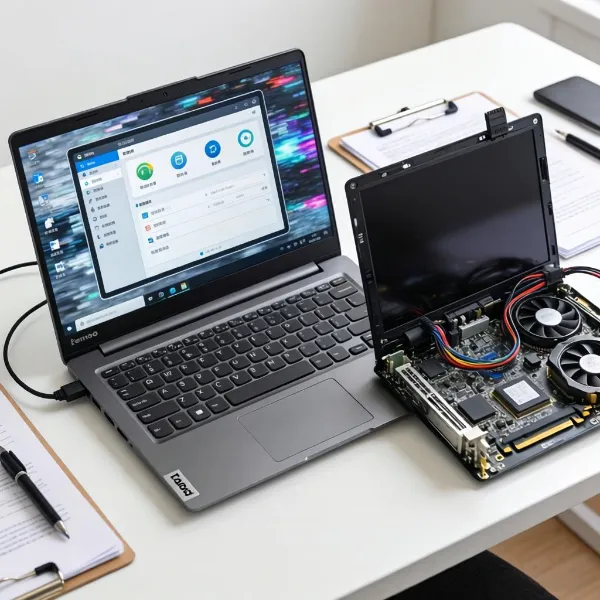
In more serious cases, flickering can be caused by hardware problems. A loose screen cable or a faulty GPU can result in intermittent flickering. If software fixes don't work, it may be time to consider a hardware issue.
What to Try First for Lenovo Laptop Display Flickering
Before jumping into complicated fixes, try these quick and easy solutions:
Restart Your Laptop
It might sound simple, but sometimes restarting your laptop is all it takes to solve display issues. This can clear temporary glitches and get the display back to normal. If the flickering continues after a restart, move on to the next steps.
Update or Reinstall the Graphics Driver
If the flickering is linked to your graphics driver, updating or reinstalling it can often resolve the issue. Visit Lenovo’s official website or use the device manager to find and install the latest driver updates. If the problem started after a recent update, reinstalling the driver might do the trick.
Roll Back a Recent Driver Update
In some cases, the flickering might have started after a graphics driver update. If that’s the case, you can try rolling back to an earlier version. This can be done in the device manager, where you’ll find the option to restore the driver to its previous version.
Change the Refresh Rate
Your laptop’s refresh rate might be set too high or too low, causing flickering. Go to Display Settings > Advanced Display Settings > Display Adapter Properties > Monitor Tab, and try adjusting the refresh rate to a different setting. Often, selecting a refresh rate that matches your monitor’s native setting can fix the problem.

Settings That Can Fix Lenovo Laptop Display Flickering
Sometimes, tweaking specific settings can stop the flickering. Here are a few to try:
Turn Off Panel Self-Refresh
Panel self-refresh is a feature that helps save battery but can also cause flickering in some cases. Turning it off can improve screen stability. You can usually find this setting in your graphics card’s advanced options.
Adjust Wi-Fi Power Settings
Power-saving features designed for Wi-Fi can sometimes interfere with your laptop’s display. Turn off any Wi-Fi power-saving modes in your laptop's power settings to see if that resolves the issue.
Remove Apps That Could Be Causing Flickering
Certain apps, especially those that use heavy graphics, can trigger screen flickering. Try closing these apps to see if that fixes the issue. If the flickering stops, you may want to uninstall the app or look for alternatives that are less resource-hungry.
Run Your Laptop in Safe Mode
Running your laptop in safe mode disables unnecessary apps and services that may be causing issues. If the flickering stops in safe mode, it’s likely that a third-party app or background process is to blame. You can then go through your apps to identify the culprit.
How to Check If Lenovo Laptop Display Flickering Is a Hardware Issue
If software fixes don’t work, it’s time to consider the possibility of hardware failure. Here’s how you can check:
Test with an External Monitor
Connect your Lenovo laptop to an external monitor. If the flickering stops on the external monitor but continues on your laptop’s built-in display, it suggests that the issue is with your laptop's screen, cable, or internal components.
Check for a Loose Screen Cable
A loose or damaged screen cable can cause flickering. Try gently adjusting or moving the screen to see if the flickering changes. If it does, the cable might need to be reconnected or replaced.
Perform a Hard Reset
A hard reset can sometimes help resolve stubborn display issues. To do a hard reset, shut down your laptop, unplug the battery (if possible), and hold down the power button for about 15-20 seconds. Then, reconnect the battery and turn the laptop back on.
Watch for GPU-Related Issues
A malfunctioning graphics card (GPU) can also cause flickering. If you’re using a dedicated GPU, try disabling it in the device manager and using integrated graphics. If the flickering stops, your GPU may need repair or replacement.
When Lenovo Laptop Display Flickering Needs Repair
If none of the above steps work, it might be time to take your laptop in for professional repair. Here are a few signs that the issue could be hardware-related:
Flickering Before Windows Loads
If your laptop’s display flickers before Windows even starts, it likely points to a hardware problem. This could be related to the screen itself, the cable, or the GPU, and it’s not something that can usually be fixed with software.
Flickering Persists After Software Fixes
If the flickering continues even after updating drivers, adjusting settings, and closing apps, it’s probably a deeper issue. This is a sign that something more serious is affecting your laptop, such as a failing GPU or screen.
Display Shows Lines, Flashes, or Blackouts
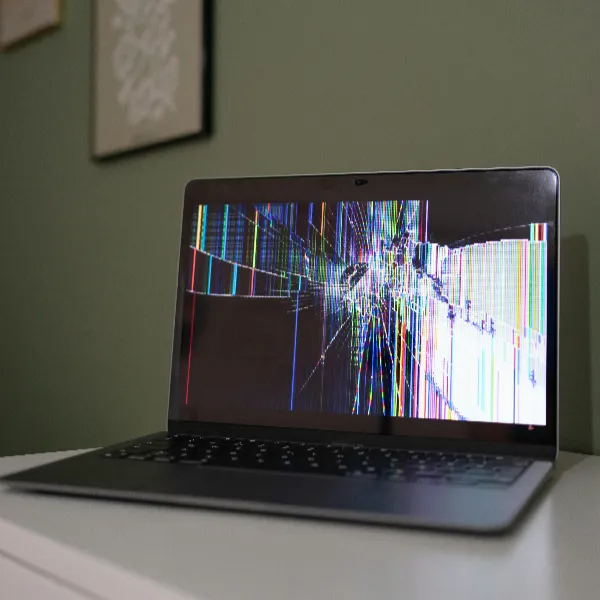
If the screen is showing lines, flashing colors, or going black intermittently, it suggests a hardware malfunction. In this case, it’s best to consult a technician, as the problem may involve the screen or GPU.
Conclusion
Dealing with Lenovo laptop display flickering is frustrating, but it's usually fixable with some straightforward troubleshooting steps. Start by checking for software issues like outdated drivers or incorrect display settings. If the flickering persists, it could be a hardware problem that requires professional attention. Either way, following these steps should help you get your laptop’s screen back in working order.