How to Fix Lenovo Laptop Screen Glitches
Dealing with screen glitches on your Lenovo laptop can be frustrating, especially when you're working or streaming your favorite shows. Whether it’s flickering, distorted images, or random artifacts, we’re here to help. This guide will take you through some simple steps to troubleshoot and fix the most common causes of Lenovo laptop screen glitches, from quick software fixes to more advanced solutions.
What Usually Causes Screen Glitches on a Lenovo Laptop
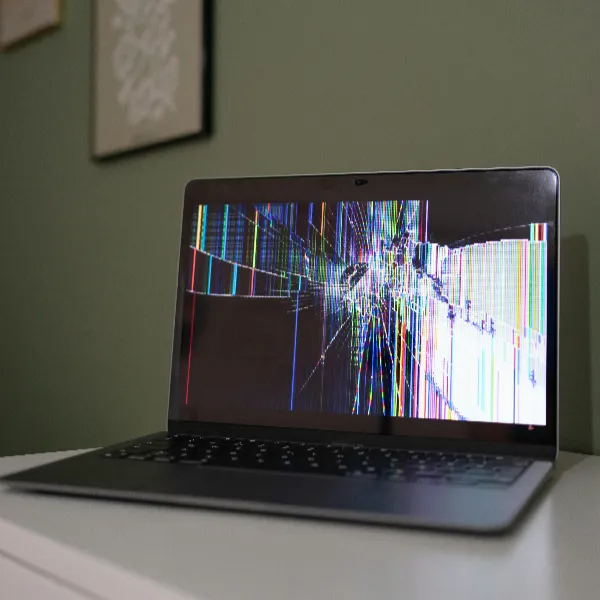
Screen glitches can be caused by a number of factors. To fix the problem, you need to know what’s behind it. Here are the main culprits:
Display Driver Issues
An outdated or faulty display driver is one of the most common causes of screen glitches. If your graphics driver is acting up, it can result in flickering, freezing, or other weird visuals. This problem may happen after an update or if the driver isn't compatible with your laptop's operating system.
App or System Conflicts
Sometimes, the glitching could be due to conflicts between apps or the system itself. Running resource-heavy apps, or having several programs open at once, might overload your laptop and cause the screen to glitch. This is especially common after a recent app or OS update.
Wrong Display Settings
Incorrect display settings are another common reason for glitches. If the screen resolution, refresh rate, or other display settings don’t match your laptop’s capabilities, it can result in screen problems. It’s easy to accidentally set the wrong settings, especially if you've changed them recently.
Screen or GPU Faults
Occasionally, screen glitches happen because of hardware problems. A malfunctioning GPU or a broken screen might be the root cause. If the glitches persist even after trying software fixes, you may be dealing with a hardware issue.
Quick Checks to Try First
Before diving into more technical fixes, let’s start with a few quick checks. These simple steps might resolve the issue or at least give you a better idea of what's causing the glitches.
Restart Your Laptop
It may seem obvious, but restarting your laptop can often fix minor screen glitches. This action closes any apps or processes that might be causing conflicts and gives your system a fresh start. Sometimes, a simple reboot is all it takes to clear up the issue.
Test the Screen in Safe Mode
Starting your Lenovo laptop in Safe Mode is a great way to determine if the problem lies with a specific app or driver. In Safe Mode, only essential drivers are loaded, so if the glitches disappear, you’ll know it’s related to a third-party app or driver.
Check an External Monitor
If you have an external monitor available, connect your laptop to it and check if the glitches appear on that display as well. If the external monitor is glitch-free, the issue is likely with your laptop’s screen or GPU. If both displays are glitching, it points to a software or system issue.
Settings and Fixes That Often Work
If the basic checks didn’t solve the problem, there are several settings and fixes you can try. These solutions often work for most Lenovo laptop screen glitches.
Update or Reinstall the Display Driver
Outdated or corrupted drivers are a common cause of screen glitches. To fix this, go to your device manager and update your display driver. If that doesn’t work, you can uninstall the driver and reinstall it. This often clears up any issues related to the display.
Roll Back a Recent Driver Update
If you’ve recently updated your driver and the glitches started afterward, it could be that the new driver isn’t compatible with your laptop. In this case, you can roll back to the previous version of the driver. To do this, open Device Manager, find the display adapter, and select "Roll Back Driver."
Change the Refresh Rate
A mismatch between your laptop’s refresh rate and the display settings can cause glitches. You can adjust this in your display settings. Most laptops have a refresh rate of 60Hz, but check your laptop’s specifications to make sure it’s set correctly.
Turn Off Panel Self Refresh
Panel Self Refresh (PSR) is a power-saving feature on some Lenovo laptops. While it helps conserve battery life, it can sometimes cause glitches. You can disable PSR in the BIOS or Lenovo Vantage software. Turning it off might fix the glitching issue.
Change Power Settings
Your laptop’s power settings can affect display performance. Ensure that your laptop is set to "High Performance" mode in the power options. This will prevent the laptop from throttling power to the display or other hardware, which can sometimes cause glitches.
What to Do If the Screen Still Glitches
If none of the above solutions fixed the problem, it’s time to take a deeper dive into the issue. Here’s what to do next:
Run a Hardware Check
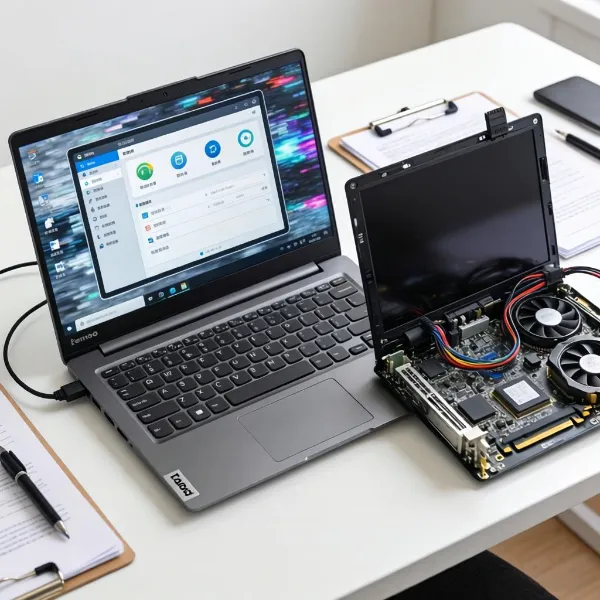
You can run Lenovo’s built-in hardware diagnostic tool to check for issues with the screen or GPU. The tool can help detect faulty components, such as a malfunctioning graphics card or a loose connection, and guide you on what to do next.
Update BIOS and Windows
Sometimes, outdated BIOS or Windows software can cause screen glitches. Go to Lenovo’s official support page to check for any BIOS or firmware updates. Also, make sure that your Windows operating system is up to date, as updates can fix bugs and compatibility issues.
Get the Screen or GPU Checked
If the problem persists, it might be time to seek professional help. If you suspect a hardware issue, contact Lenovo support or visit an authorized repair center. A faulty GPU or broken screen often requires repair or replacement.
Conclusion
Lenovo laptop screen glitches are often caused by outdated drivers, software conflicts, or incorrect display settings. Start with the easy fixes like restarting your laptop or updating the display driver. If the glitches persist, adjust settings such as refresh rates or power modes. For more complex issues, run a hardware diagnostic tool or contact Lenovo support for assistance. By following these steps, you’ll likely be able to resolve most screen glitches on your Lenovo laptop.