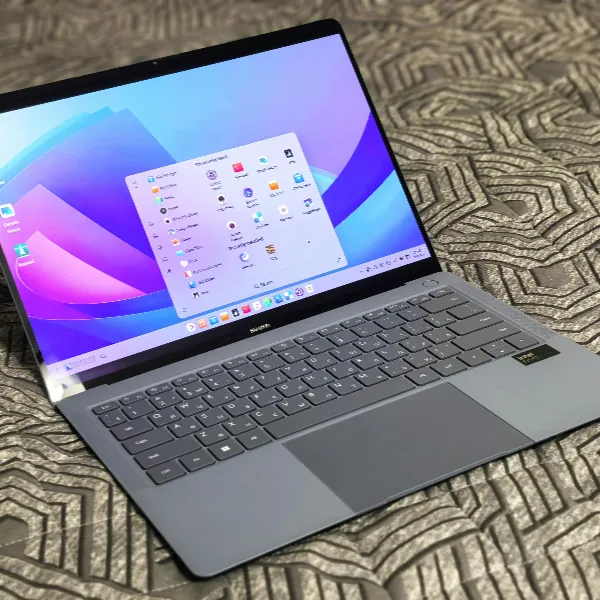
Mac Keyboard Shortcut for Split Screen
Looking for the best way to manage multiple apps on your Mac? The Mac keyboard shortcut for split screen can make multitasking so much easier. In this guide, we’ll walk you through how to use Split View, explain the role of Mission Control, and share tips for macOS Sequoia’s advanced window management features. Plus, we’ll help you troubleshoot if split screen isn’t working right.

Is There a Mac Keyboard Shortcut for Split Screen?
Mac Does Not Have One Windows-Style Shortcut
Unlike Windows, macOS doesn’t offer a single shortcut that instantly activates split screen. While Windows users can easily snap windows to each side of the screen, macOS uses Split View to let you work with two apps side by side. Though you don’t get a one-click keyboard shortcut for split screen, there are other ways to arrange your windows efficiently using keyboard shortcuts.
Split View and Window Tiling Work Differently
In macOS, Split View places two apps in full-screen mode side by side, but it works a bit differently from the window snapping seen in Windows. You can’t simply drag and drop apps into a split screen setup using the keyboard. Instead, you use Mission Control or the green button in the app’s window to get started with Split View. You can also organize windows with window tiling in newer macOS versions.
Your macOS Version Affects What You Can Do
Your experience with split screen on Mac can vary depending on the version of macOS you're using. For example, macOS Mojave and later support Split View, while macOS Sequoia introduces more advanced window management options. Make sure you have the latest macOS version to enjoy the best multitasking features available.
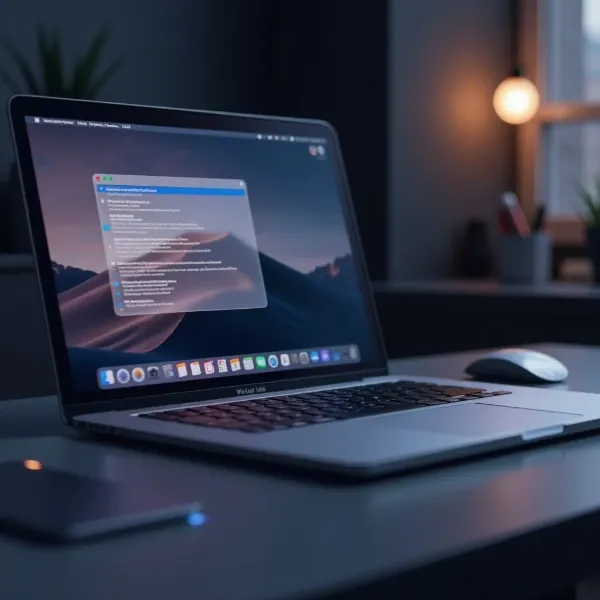
Split Screen on Mac
Setting up Split View on your Mac may take a few extra steps, but once you get the hang of it, it’s a great way to boost productivity. Here’s a simple guide to getting two apps side by side on your Mac.
Put the First App in Split View
To get started, open the first app you want to use. Then, hover your mouse over the green button in the top-left corner of the window. Hold the Option key and click the button to enter full-screen mode. Now, drag the app to one side of the screen to create a space for the second app.
Add the Second App to Split View
Once the first app is in full screen, it’s time to add the second app. Open the second app, either through Mission Control or by clicking the app’s icon in the Dock. Drag it to the empty side of the screen, and Split View will activate, allowing you to work with both apps side by side.
Exit Split View
To exit Split View, simply click the green button on either app. The apps will return to their previous window size, and you’ll be back to a traditional desktop setup.
Mac Keyboard Help for Split Screen
While there’s no direct shortcut for split screen, there are several useful keyboard shortcuts in macOS that can help with window management.
Enter Full Screen with the Keyboard
If you want to make an app take up the entire screen, you can quickly enter full-screen mode by pressing Control + Command + F. This is helpful when you’re setting up Split View, as it makes sure the app is ready to go full screen.
Open Mission Control
Mission Control helps you get a bird’s-eye view of all open windows, making it easier to drag apps into Split View or switch between spaces. You can open Mission Control by pressing Control + Up Arrow. This will show all your open apps, and you can easily manage your workspace.
Move Between Split-Screen Spaces
Once you’ve set up Split View, you can switch between the two apps with ease. Use Control + Left Arrow or Control + Right Arrow to move between the apps in Split View, even if they’re in full-screen mode.
Split Screen on Mac in Sequoia
macOS Sequoia, the latest macOS update, brings new window management features that enhance the split-screen experience.
Use Window Tiling from the Menu Bar
In macOS Sequoia, you can use window tiling to quickly organize your windows. Click the green button in the top-left corner of the window, and choose a layout from the menu. This allows you to position your apps without using Split View, giving you more flexibility when arranging your workspace.
Use Screen-Edge Tiling
Another great feature in macOS Sequoia is screen-edge tiling. When you drag a window to the edge of the screen, it will automatically snap into place, helping you organize your desktop faster. This feature works much like window snapping in Windows but with more seamless integration into macOS.
Pick a Window Layout Faster
With the new window tiling options in macOS Sequoia, you can quickly choose the layout you need. Whether you want a simple split screen or a more complex layout, macOS Sequoia makes it easy to customize your workspace to suit your needs.
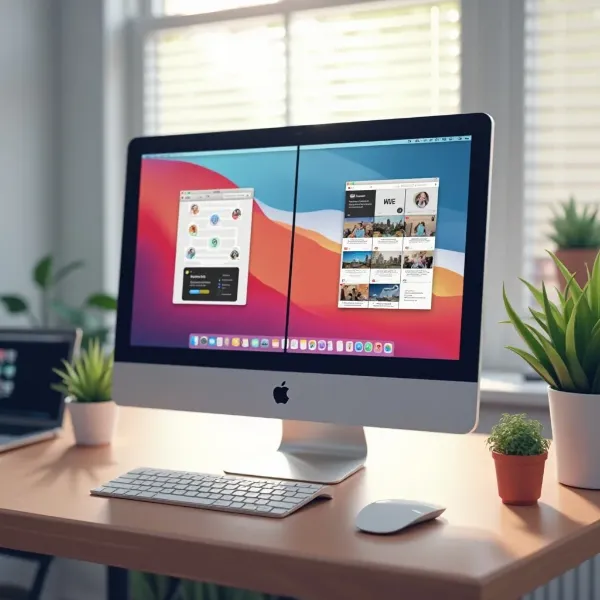
Mac Split Screen Shortcut Problems
While Split View and window tiling are great tools, sometimes things don’t work as expected. Here are a few common issues you might run into and how to fix them.
Split View Will Not Start
If Split View won’t start, check to see if the apps you’re using are compatible with full-screen mode. Some apps, like some web browsers, may not support this feature. Also, make sure your macOS is up to date to avoid bugs that might interfere with Split View.
The Full-Screen Shortcut Does Not Help
If pressing Control + Command + F doesn’t help, try clicking and holding the green button in the app’s window. Without the Option key, the app will simply go into full screen, but holding Option activates Split View. This trick makes it easy to set up a split screen without extra steps.
Window Tiling Is Missing in Sequoia
If the window tiling feature is missing in macOS Sequoia, check your settings and make sure you’re running the latest version of macOS. If you're using third-party window management tools, try disabling them to see if macOS Sequoia's window tiling feature comes back.
Conclusion
Although there isn’t a single keyboard shortcut for split screen on your Mac, there are several ways to efficiently manage your apps and windows. By using Split View, Mission Control, and macOS Sequoia’s window tiling features, you can easily multitask and improve your productivity. If you encounter any issues, ensure your macOS is up to date, and check your settings for compatibility. Mastering these multitasking tools will make your Mac experience more efficient and organized.