Best Work Monitors for Better Productivity and Comfort
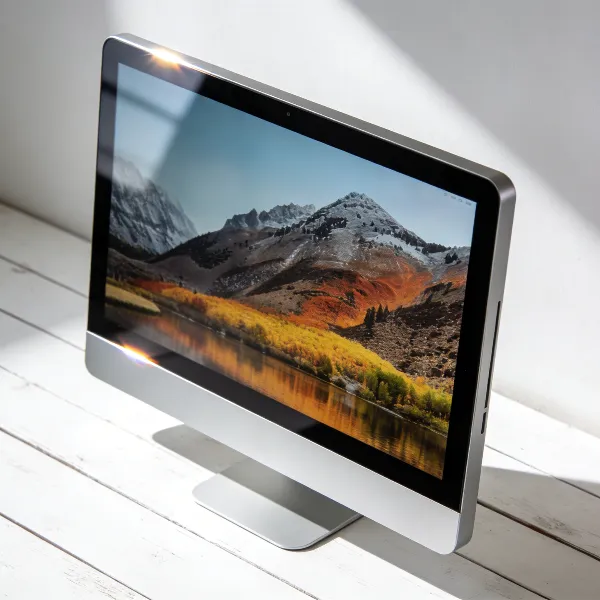
For most people, the best work monitors are 27-inch displays with sharp text, a comfortable stand, and enough ports for the devices they actually use. If your work is mostly email, documents, meetings, and browser tabs, start there before paying extra for 4K, ultrawide size, or premium color features.
Best work monitors to buy
A good work monitor should solve a real desk problem: cramped windows, soft text, messy laptop cables, poor posture, or not enough room for multitasking. The five picks here suit different needs, so the best choice depends less on the highest spec and more on how your workday is set up.
Dell UltraSharp U2724D
The Dell UltraSharp U2724D is the safest all-round pick for a normal home office or company desk. Its 27-inch size and 1440p resolution are a strong match for documents, email, web apps, writing, and video meetings because you get more space than 24 inches without needing a huge desk.
Choose it if you want a dependable productivity screen and do not need 4K detail or an ultrawide layout. It is especially sensible for long daily use because the adjustable stand matters as much as the panel: if you can set the height correctly, the monitor is easier to live with for eight-hour workdays.
ASUS ProArt PA278CV
The ASUS ProArt PA278CV is a better fit if your work mixes standard office tasks with light creative review. Think presentations, marketing images, simple photo edits, web content, or brand materials where color matters more than it would on a basic office monitor.
- Best for: office users who also check visuals.
- Why it stands out: balanced 27-inch 1440p productivity with stronger color focus.
- Check before buying: whether its USB-C power output is enough for your laptop model.
LG UltraFine 32UQ850
The LG UltraFine 32UQ850 makes sense when you want one large, sharp screen instead of two separate monitors. A 32-inch 4K display is useful for dense spreadsheets, dashboards, design files, and side-by-side documents because the extra space feels practical rather than oversized.
It is not the first monitor I would suggest for a shallow desk or casual office use. You need enough distance from the screen, and 4K is only worth paying for if you will notice the sharper text, extra detail, or larger workspace every day.
Key features of the best work monitors
The first things to check are size, resolution, stand adjustment, and ports. Those affect daily comfort more than small differences in marketing specs, especially if you sit at the same screen for long work sessions.
Screen size for comfortable daily work
Screen size should match both your desk and your window habits. A 27-inch monitor is the best default for most people because it gives enough room for two useful windows without forcing too much head movement.
A 24-inch monitor is still fine for a compact desk, student setup, or light admin work. Move to 32 inches or ultrawide only if you often compare information across apps; otherwise the extra size can become more tiring than helpful.
Resolution for clear text and details
For 27-inch work monitors, 1440p is usually the value sweet spot. Text looks much cleaner than 1080p, and you avoid some of the scaling decisions that come with smaller 4K screens.
- 24 inches: 1080p is acceptable for basic office work.
- 27 inches: 1440p is the most practical default.
- 32 inches: 4K becomes easier to justify for sharp text and larger workspaces.
Ports for laptops and desk setups
Ports matter most when a laptop is your main computer. HDMI or DisplayPort may be enough for a desktop PC, but USB-C can simplify a laptop desk by carrying video, data, and sometimes charging through one cable.
Do not buy on the words "USB-C" alone. Check whether the monitor supports charging, how much power it can provide, and whether it has enough USB ports for your keyboard, mouse, webcam, or storage devices.
Choose a work monitor for your daily tasks
The right monitor changes when the work changes. Someone who mainly joins calls does not need the same setup as a developer, spreadsheet-heavy analyst, or designer checking color-sensitive files.
Office work and video meetings
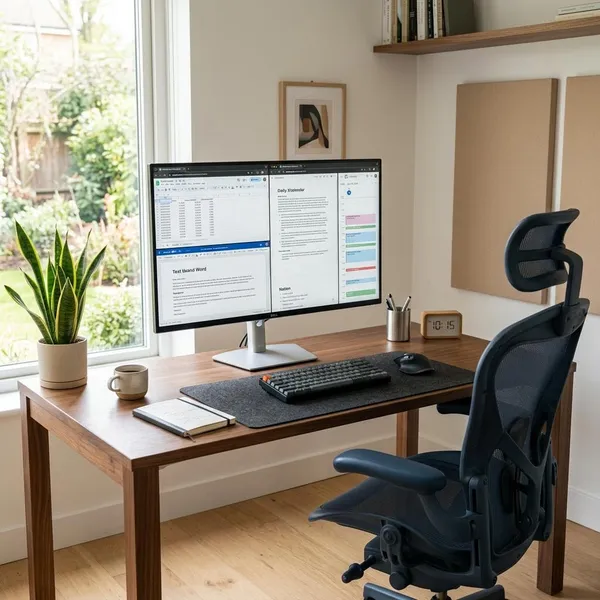
For email, documents, browser apps, and video meetings, a 27-inch 1440p monitor is usually the most sensible upgrade. It gives you room to keep a meeting window open while taking notes or checking a document, without turning the desk into a command center.
If this is a hybrid-work setup where you carry a laptop between home and office, USB-C becomes more valuable than a small jump in panel quality. A fast one-cable connection is the kind of convenience you notice every morning.
Coding and text heavy work
Coding, writing, editing, and research need sharp text and good ergonomics more than huge screen size. A 27-inch 1440p monitor works well for many people, while 4K is worth considering if you are sensitive to text sharpness or use dense development tools.
Portrait mode can be genuinely useful here. If you often read long files, documentation, or drafts, a pivoting monitor lets you see more vertical content with less scrolling.
Spreadsheets and multitasking
Spreadsheet-heavy work is where more screen space can save real time. A 27-inch monitor is a solid start, but a 32-inch 4K display, ultrawide, or dual-monitor setup can be better if you regularly compare columns, dashboards, reports, and messages.
| Work pattern | Better monitor direction |
|---|---|
| One spreadsheet plus email | 27-inch 1440p |
| Large sheets and dashboards | 32-inch 4K or ultrawide |
| Main work on one screen, references on another | Dual monitors |
Size is not just about wanting a bigger screen. The best setup is the one that fits your desk depth, keeps your main work centered, and reduces window switching without making you constantly turn your head.
24 inch monitors for small desks
A 24-inch monitor is a practical choice for small desks, shared rooms, dorm setups, or occasional workstations. It handles email, web apps, calls, and light document work well enough, and it leaves more room for a laptop, notebook, or keyboard.
I would not choose 24 inches as the first option for full-time spreadsheet, coding, or multitasking work unless space is the main limitation. The smaller screen quickly feels cramped when you need two serious windows side by side.
27 inch monitors for balanced productivity
A 27-inch monitor is the best middle ground for most work setups. It is large enough for proper split-screen use, but still manageable on normal desks and easy to pair with 1440p resolution.
- Good fit: remote work, office apps, writing, coding, meetings, research.
- Best resolution match: 1440p for value and clarity.
- When to upgrade: choose 4K or 32 inches if you need more detail or more visible workspace.
Ultrawide and dual monitor setups for multitasking
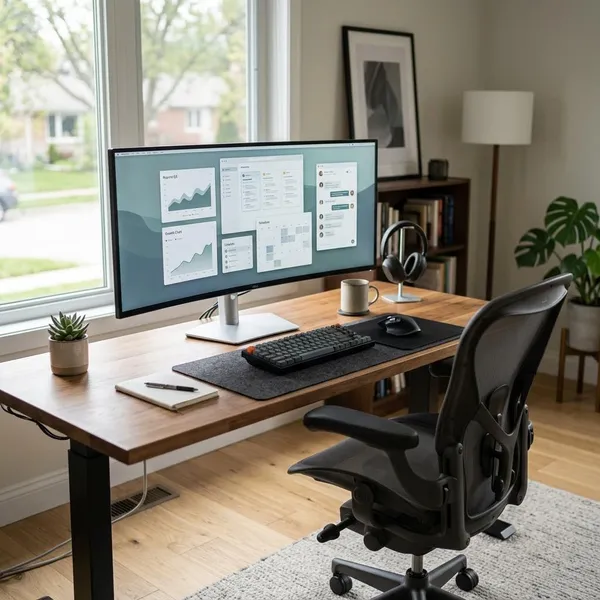
Ultrawide and dual-monitor setups are worth considering when switching between windows is one of your daily frustrations. For example, a project manager who keeps a schedule, chat, browser, and document open all day may benefit much more from width than from a sharper standard-size screen.
Choose ultrawide if you prefer one continuous workspace with no middle bezel. Choose dual monitors if you like separating tasks, such as main work on one screen and calls, references, or messages on the other.Compare work monitor setups
Single monitors, ultrawides, and dual monitors can all be productive. The mistake is buying the most impressive setup before deciding how you actually arrange work on screen.
Single monitor setups for simple workflows
A single quality monitor is enough if you mostly work in one main app with a second window nearby. A 27-inch display keeps the desk simple, reduces cables, and is easier to position correctly than a wider setup.
This is also the cleanest option for renters, small home offices, and people who do not want to manage several displays. One good monitor with sharp text and a proper stand is often better than two cheap screens with poor ergonomics.
Ultrawide monitors for wider workspace
An ultrawide monitor feels best when your work spreads horizontally: large spreadsheets, timelines, analytics dashboards, editing tools, scheduling systems, or multiple browser windows. The main benefit is not just more space, but fewer interruptions from resizing and switching.
Before choosing one, measure your desk and think about viewing distance. A wide screen can feel immersive in a deep workspace and awkward on a shallow table.
Dual monitors for flexible multitasking
Dual monitors are still the most flexible setup if you like assigning jobs to separate screens. A developer might keep code on one display and documentation on the other; a support worker might keep tickets on one screen and chat or account details on the second.
- Best reason to choose dual: clear task separation.
- Main downside: more cables, more alignment, and a bezel gap.
- Budget advantage: you can add one monitor if you already own a decent screen.
Conclusion
If you are unsure, buy a good 27-inch 1440p monitor with an adjustable stand before chasing bigger or sharper options. Go 32-inch 4K when detail and space matter every day, choose USB-C when your laptop is the center of the setup, and consider ultrawide or dual monitors only if your workflow genuinely needs multiple windows visible at once.