Why Are There Black Lines on My Laptop Screen and What Do They Mean
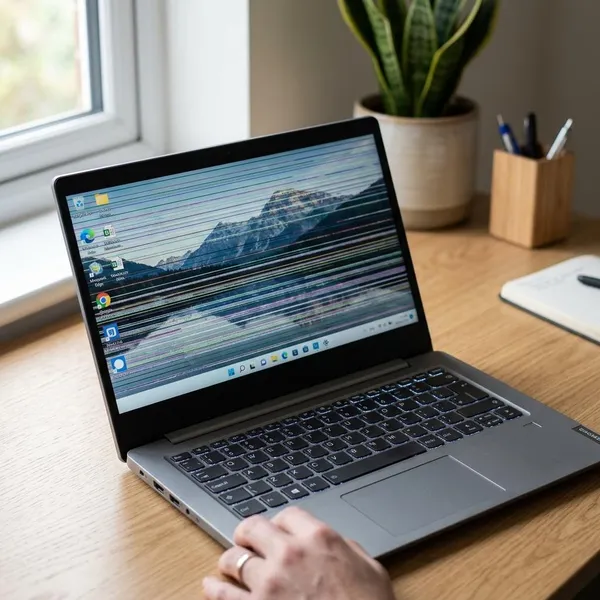
If you are wondering why are there black lines on my laptop screen, start by checking whether the lines are fixed, moving, or only appearing after the system loads. Fixed black lines often point to screen damage, lines that change with the lid often suggest a cable issue, and lines that also show on an external monitor can mean a graphics problem. The safest first move is to test before assuming the screen needs replacing.
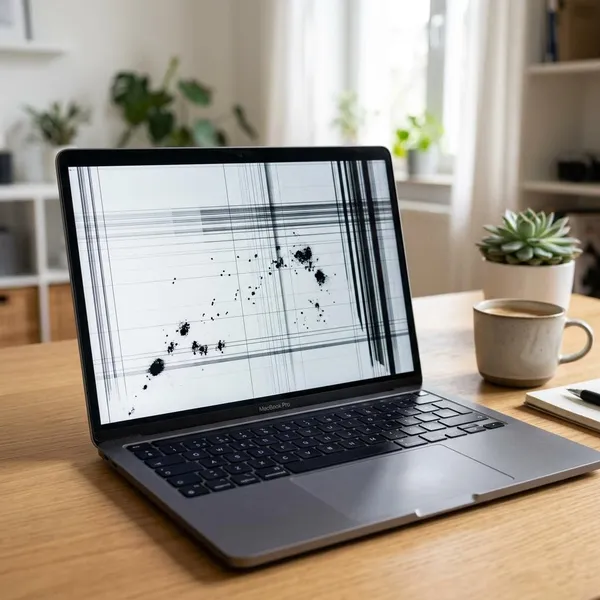
What black lines on a laptop screen mean
Black lines usually mean something in the display path is not working cleanly. That path includes the screen panel, the cable running through the hinge, the graphics driver, and the graphics hardware inside the laptop.
- Fixed line: more likely to be screen panel damage.
- Line changes with lid angle: often points to the internal display cable.
- Line appears after login: software or driver trouble is possible.
- Line appears on an external monitor too: graphics hardware or driver issues move higher on the list.
Screen damage causes permanent lines
A permanent black line that stays in exactly the same place usually suggests damage inside the display panel. This can happen after a drop, pressure in a backpack, closing the lid on a small object, or slow failure inside the panel.
If the line is visible on the logo screen before Windows or macOS loads, changing display settings is unlikely to fix it. A single thin line may stay usable for a while, but if it spreads or multiplies, screen replacement becomes more likely.
Cable problems cause changing lines
A cable fault often looks less consistent. The line may flicker, disappear, turn into a dark band, or change when you open the lid wider. That happens because the display cable passes through the hinge and bends every time the laptop is opened.
This is common on laptops used daily, especially if the hinge feels loose or stiff. Avoid repeatedly twisting the lid to "test" it, because that can make a weak cable worse.
Software issues affect display output
Software becomes a stronger suspect when the lines started after an update, a new monitor setup, a resolution change, or installing graphics-related software. In that case, the screen itself may still be fine, but the laptop is sending the wrong or unstable image output.
- Check the recommended resolution.
- Return the refresh rate to the default option.
- Try Safe Mode if the lines appear only after login.
- Roll back a graphics driver if the issue started right after an update.
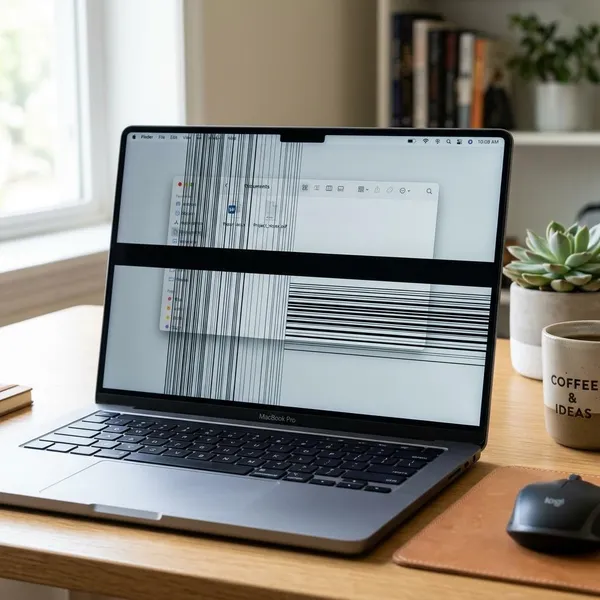
Check the type of black lines
The shape of the line does not prove the cause by itself, but it helps you choose the next test. Look at whether the lines are horizontal, vertical, flickering, thick, thin, fixed, or changing with heat and movement.
Horizontal lines usually point to display problems
Horizontal black lines often suggest a problem inside the display panel, especially when they stay in the same place from startup to shutdown. They may come from damaged rows inside the screen or pressure-related panel failure.
There is one important exception: if the horizontal lines flicker during gaming, video playback, or after waking from sleep, test the driver and external monitor before paying for a screen replacement.
Vertical lines often suggest screen or connection issues
A single vertical black stripe from top to bottom often points to a failed column in the panel. Several vertical lines that flicker or change may be more consistent with a cable or connection issue.
If the laptop was recently dropped or squeezed in a bag, treat panel damage as more likely. If the line started after months of opening and closing a stiff hinge, the cable deserves a closer look.
Flickering lines can come from software or hardware faults
Flickering lines need more testing because they can come from several places. A driver glitch may flicker after login, a loose cable may flicker when the lid moves, and a graphics fault may flicker more when the laptop gets hot.
- Flickers after login: check drivers and display settings.
- Flickers with lid movement: suspect the display cable.
- Flickers after heavy use: watch for heat or graphics hardware issues.
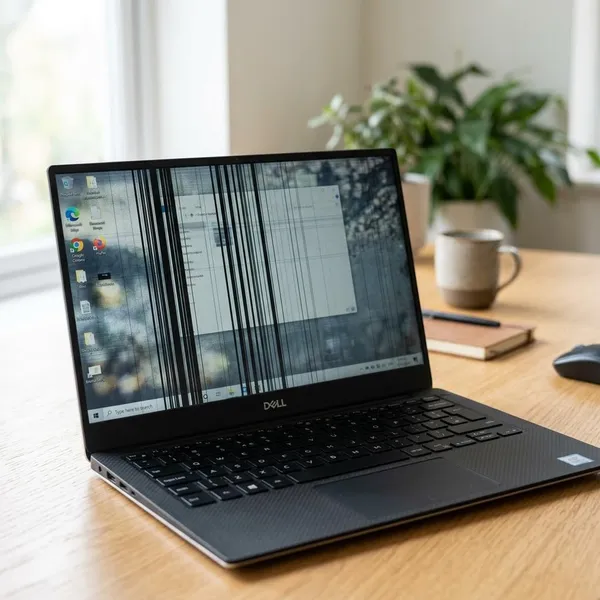
Find out why black lines appear
The quickest way to narrow the cause is to think about what happened just before the lines appeared. A laptop that developed a line after being dropped is different from one that showed lines right after a graphics update.
Display settings and driver problems
Display settings are worth checking first because they are safe and free to change. Set the screen to its recommended resolution, use the normal refresh rate, and undo any recent scaling, HDR, overlay, or graphics control panel changes.
If the problem appeared right after a Windows update or graphics driver update, try rolling back the driver. If the lines disappear in Safe Mode or under a clean boot, software is much more likely than physical screen damage.
Loose or damaged screen cables
A loose or worn display cable can interrupt the image signal between the motherboard and the screen. The signs are often unstable: brief blackouts, flickering, color shifts, or lines that change when the lid angle changes.
This is a practical repair-shop clue. If you can say, "The line disappears when the screen is opened halfway," a technician can check the cable and hinge area before assuming the panel is dead.
Screen pressure impact or liquid damage
Pressure damage does not always leave an obvious crack. A laptop closed on earbuds, packed tightly in a full backpack, or pressed under books can develop internal panel damage while the outer surface still looks normal.
Liquid damage can be slower. Moisture may reach a connector and cause corrosion later, so lines can appear days after a spill. If liquid was involved, avoid repeated power cycling and get the laptop checked, especially if the image is changing or the keyboard area was wet.
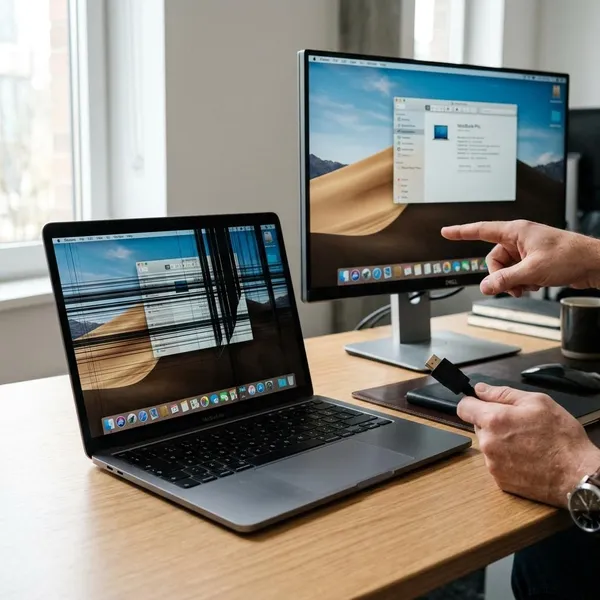
Check if the problem is the screen or software
Before spending money, run three simple checks: look at the screen during startup, compare it with an external monitor, and gently move the lid. These tests do not require opening the laptop and usually give a clearer direction.
Do the checks in order and change only one thing at a time. If you update drivers, change settings, and move cables all at once, it becomes harder to know what actually changed the result.
Test the display during startup
Turn the laptop off, start it again, and watch the brand logo, BIOS screen, or early loading screen. If the black lines are already visible before the operating system loads, a driver or app is less likely to be the main cause.
If the startup screen looks clean but the lines appear after login, focus on software first. That includes graphics drivers, refresh rate settings, startup apps, and display utilities.
Compare with an external monitor
Connect the laptop to a monitor or TV with HDMI, USB-C, or DisplayPort if your laptop supports it. Then compare the built-in display with the external screen.
| What you see | Most likely direction |
|---|---|
| Lines only on the laptop screen | Screen panel or display cable |
| Lines on both displays | Graphics driver, GPU, or motherboard |
| External screen works after driver change | Software was likely involved |
This test is especially useful if you need the laptop for work or school right away. A clean external monitor may let you keep using the machine temporarily while planning a screen or cable repair.
Check changes when moving the lid
Move the lid slowly through normal angles and watch the line. Do not press the screen or force the hinge. If the line changes, flickers, or disappears at certain angles, the cable or hinge area is a strong suspect.
If nothing changes and the line stays fixed everywhere, panel damage becomes more likely.
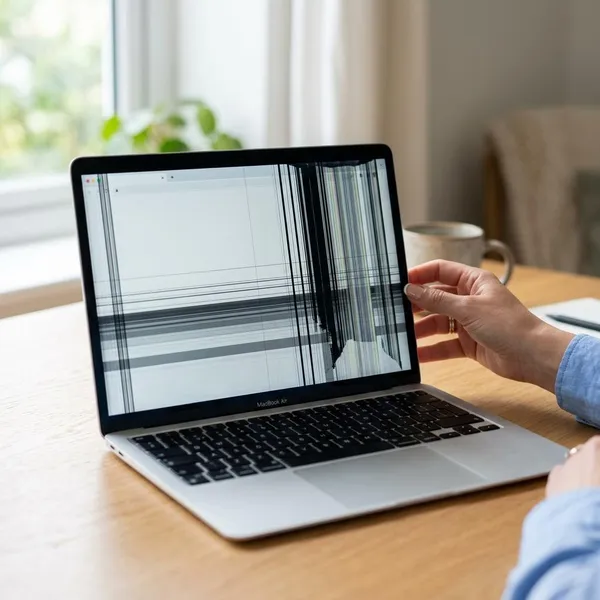
Fix black lines on a laptop screen
Start with the least risky fixes. Restarting, checking display settings, and reinstalling drivers cannot repair a cracked panel, but they can save you from paying for hardware work when the problem is only software.
If the line is permanent, spreading, visible before startup finishes, or clearly tied to lid movement, move toward repair instead of repeating the same software steps for days.
Restart and update the system
Restart the laptop fully, not just sleep and wake. Temporary graphics glitches can happen after docking, waking from sleep, or a failed update.
After the restart, install normal system updates from the operating system and the laptop maker's support tool if available. Then check the screen again before changing anything else.
Adjust display settings
Set the display to the recommended resolution and default refresh rate. If you recently used a projector, TV, docking station, or second monitor, the laptop may have kept a setting that does not suit the built-in panel.
- Turn off unusual scaling settings.
- Disable overlays or display enhancement apps temporarily.
- Undo recent HDR, adaptive sync, or graphics panel overrides.
Update or reinstall graphics drivers
Use the laptop manufacturer's driver page first, especially on models with both integrated and dedicated graphics. Generic GPU drivers can work well, but laptop-specific versions are often safer for display switching and power management.
- Update the graphics driver if it is old.
- Roll it back if the lines started after a new update.
- Reinstall it cleanly if the driver seems corrupted.
- Test Safe Mode if normal startup still shows lines.
If none of these steps change the symptom at all, hardware becomes more likely.
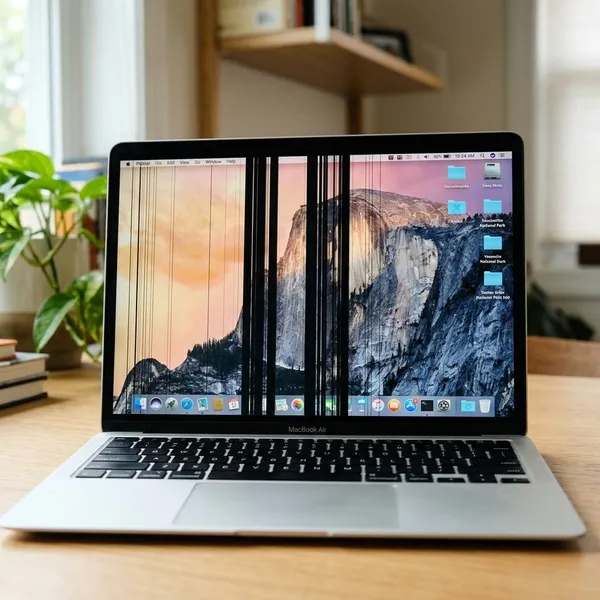
When black lines need repair
Repair is more likely when the lines are fixed in place, visible during startup, getting worse, tied to physical damage, or present on an external monitor. At that point, the main decision is not which setting to change, but whether the screen, cable, or graphics hardware is worth repairing.
Replace the screen for panel damage
Replace the screen when the panel itself is damaged: fixed black lines, dead columns, pressure marks, or damage visible before the system loads. Software changes rarely help in that situation.
Ask the repair shop for the exact panel resolution, finish, and installed price. A cheap replacement panel may work, but it may not match the original brightness or color quality.
Repair cables for connection problems
Cable repair is worth considering when the image changes with lid movement. The fix may be reseating the connector, replacing the cable, or repairing hinge-related strain.
Do not ignore a loose hinge. If it keeps pulling on the cable, the same line or flicker can return even after the cable is replaced.
Get hardware support for graphics failures
Get hardware support when the lines appear on both the laptop screen and an external monitor, especially if the laptop also crashes, overheats, or shows distortion during startup. That points beyond the built-in screen.
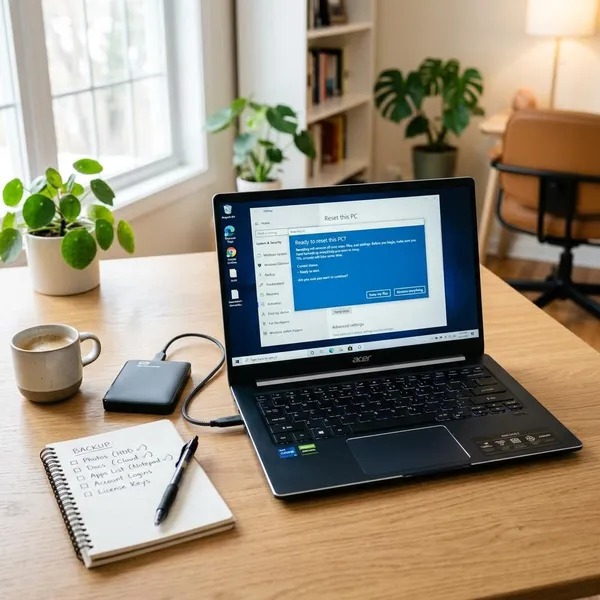
Back up important files before sending it in or continuing heavy use. Graphics and motherboard faults can worsen without much warning.
Conclusion
Black lines are not always a sign that the laptop screen is ruined, but the pattern matters. Start with startup, external monitor, and lid-movement tests, then try safe software fixes only when the clues point that way. If the line is fixed, spreading, linked to impact, or showing on another display, repair is the practical next step rather than more guessing.