How to Reset an Acer Laptop to Factory Settings Step by Step
If your Acer laptop still opens Windows, the safest first move is usually Reset this PC from Settings; if it will not boot, use the Windows recovery screen or Acer recovery instead. The key choice is whether you are fixing the laptop for yourself or wiping it for someone else, because "Keep my files" and "Remove everything" lead to very different outcomes.
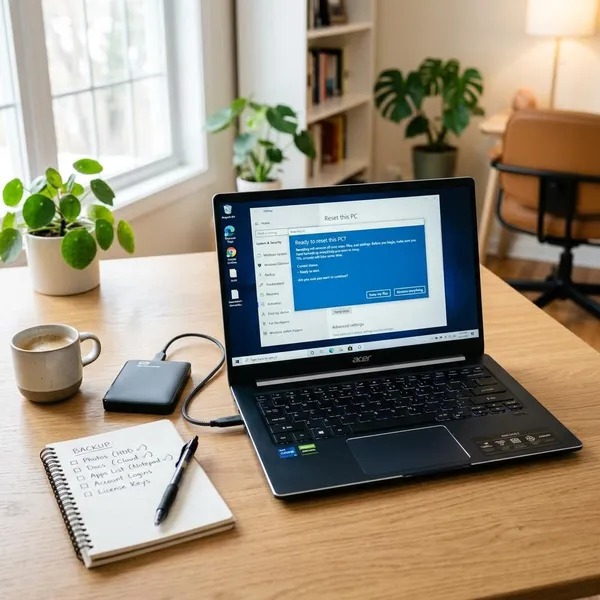
Know before resetting your Acer laptop
A reset is not one single action. On most Acer laptops, Windows can reinstall itself while trying to keep your personal files, or it can remove accounts, apps, settings, and files for a cleaner start. Some models may also have Acer recovery options, but those depend on whether the original recovery partition is still present.
Before you click through any reset screen, decide your goal: fix a slow laptop you still plan to use, recover from a broken Windows startup, or prepare the device for resale or donation. That goal should decide the reset option, not just the first button that appears.
Understand what a factory reset removes
A factory reset usually removes installed desktop programs, many custom settings, saved system changes, and user accounts created after setup. If you choose a full wipe, it also removes your personal files from the laptop.
One common misunderstanding is expecting every reset to restore the exact original Acer factory image. A standard Windows reset mainly reinstalls Windows. Acer recovery, when available, may bring back more Acer-specific software, but it is not guaranteed on every laptop, especially if the drive was replaced or Windows was reinstalled before.
Choose between keeping files and removing everything
| Situation | Better reset choice | Why it matters |
|---|---|---|
| You are keeping the laptop and mainly want to fix slowness or glitches | Keep my files | It is less disruptive, but apps still need reinstalling. |
| You are selling, giving away, or recycling the laptop | Remove everything | It removes your files and accounts from the device. |
| Windows is badly corrupted or malware is suspected | Remove everything, or reinstall if reset fails | A lighter reset may leave too much behind. |
| You have no backup yet | Pause before resetting | Even "Keep my files" can fail or remove something unexpected. |
For a student trying to save school files, "Keep my files" may be the practical first attempt. For a parent passing the laptop to a child, a full removal is usually the cleaner and safer choice.
Check your accounts and recovery options
Make sure you can access the Microsoft account, email account, cloud storage, password manager, and any two-factor authentication method tied to the laptop. If BitLocker or device encryption is enabled, check that you can get the recovery key from your Microsoft account before making major recovery changes.
Also check which reset route is realistic. If Windows opens, use Settings. If you can only reach the sign-in screen, use Shift + Restart. If Windows will not load at all, try Windows Recovery Environment or Acer recovery with Alt + F10, if your model still supports it.
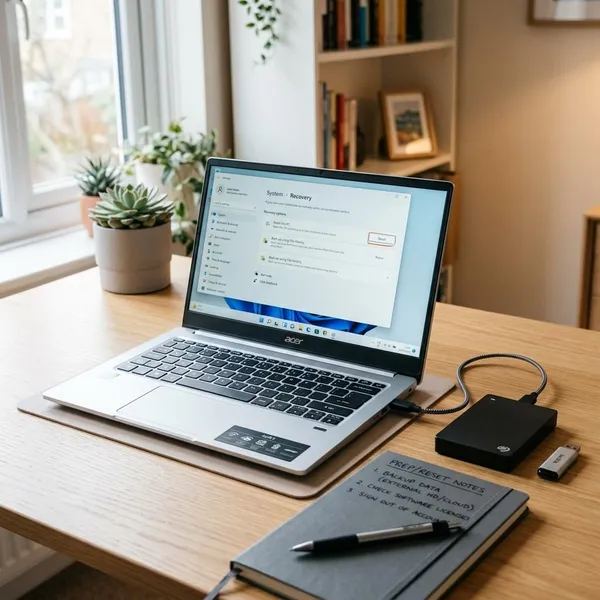
Prepare your Acer laptop for reset
The preparation is simple, but it matters more than most people think. The reset itself is mostly guided; the problems usually come from missing backups, forgotten passwords, interrupted power, or assuming cloud files are already synced.
Back up important files
Copy anything important to an external drive, another computer, or a cloud account before resetting. Do this even if you plan to choose "Keep my files," because a reset can fail, storage errors can happen, and some files may be stored outside the usual folders.
- Check Desktop, Documents, Downloads, Pictures, and custom folders.
- Look for app-specific files, such as accounting data, design projects, saved games, or exported email archives.
- Open your cloud storage from another device to confirm recent files are really uploaded.
- Export browser bookmarks if they are not synced to an account.
Save passwords and account details
A reset can remove saved browser sessions, Wi-Fi profiles, app logins, and license activations. Before starting, confirm that you know your Microsoft account password, email password, password manager master password, and the way you receive verification codes.
If you use paid software for work, school, design, taxes, or security, check whether it needs a license key or account sign-in after reinstalling. This is easy to forget until the laptop is already wiped.
Connect power and check recovery access
Keep the charger plugged in for the whole reset. A laptop that shuts down during reinstall can end up in a worse state than before.
If Windows still opens, quickly confirm that Settings has a Recovery page and that "Reset this PC" appears. If the laptop is unstable, it is also worth knowing whether you can reach the recovery screen from Shift + Restart. For a laptop that barely boots, a Windows recovery USB made on another computer can be a useful backup plan.
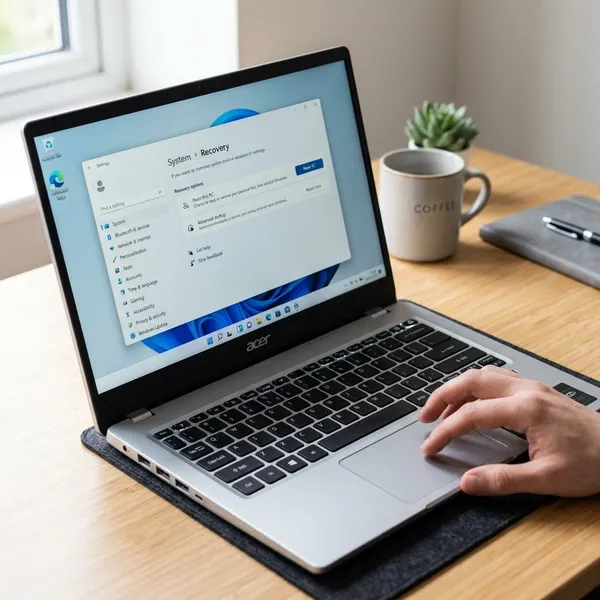
Factory reset an Acer laptop from Windows
Use this method when you can still reach the desktop and Windows responds normally enough to open Settings. It is the most straightforward route for a laptop that is slow, cluttered, or having software issues but is not completely broken.
Open Windows recovery settings
On Windows 11, go to Settings > System > Recovery. On Windows 10, go to Settings > Update & Security > Recovery. Choose Reset this PC, then select Get started.
If you cannot find the page, search for "Reset this PC" from the Start menu. If the option will not open or gives an error, do not keep forcing it; move to the recovery tools instead.
Choose Reset this PC options
Windows will ask whether you want to keep your files or remove everything. Many systems also offer Cloud download and Local reinstall. Cloud download uses fresh Windows files from Microsoft and can help when local recovery files are damaged, but it needs a reliable internet connection.
- Choose Keep my files if you are keeping the laptop and have already backed up anything important.
- Choose Remove everything if the laptop is changing owners or you want the cleanest reset.
- Use Cloud download if Windows files may be corrupted and your internet is stable.
- Review the final summary before confirming, especially the part that lists what will be removed.
Complete the reset process
After confirmation, the Acer laptop may restart several times. Leave it plugged in and avoid pressing power buttons just because the screen sits still for a while.
Most resets take roughly 30 minutes to a few hours, depending on the drive, reset type, and whether Windows downloads files. An older hard-drive model or a full cleanup option can take noticeably longer than a newer SSD laptop.
When Windows setup appears, the reset has finished. If you kept your files, check your user folders before reinstalling lots of apps. If you removed everything, treat the laptop like a fresh setup.
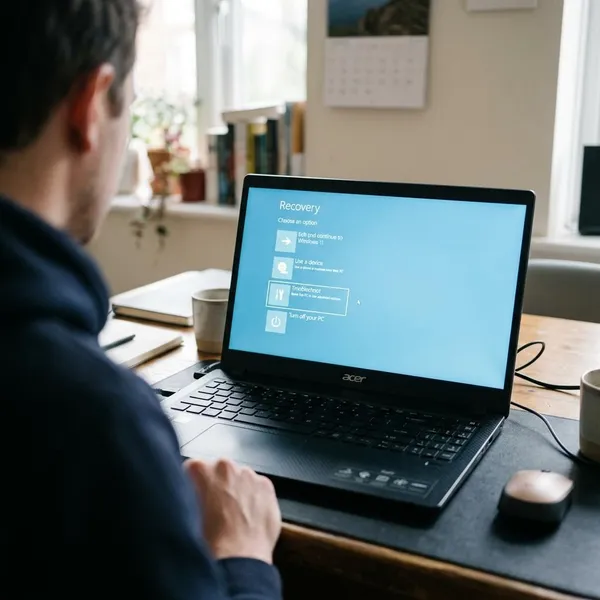
Reset an Acer laptop when Windows will not open
If the desktop never loads, you still have options. The right one depends on how far the laptop gets: sign-in screen, automatic repair, Acer logo only, or no usable Windows recovery at all.
Use the sign in recovery option
If the laptop reaches the Windows sign-in screen, click the power icon, hold Shift, and choose Restart. Keep holding Shift until the recovery menu appears, then go to Troubleshoot > Reset this PC.
This is often the cleanest route when you cannot remember the Windows password but the system still loads to the login page. It does not unlock your account; it simply lets you start the reset from recovery.
Open Windows recovery tools
When Windows crashes before sign-in, you may be able to trigger recovery by interrupting startup. Turn the laptop on, wait until Windows starts loading, then hold the power button to shut it down. After two or three failed starts, Windows may open automatic repair or recovery options.
- Choose Startup Repair first if you only need to fix booting and keep the current setup.
- Choose Reset this PC if repair fails or you want to reinstall Windows.
- Use a Windows recovery USB if the built-in recovery screen never appears.
Use Acer recovery options
Some Acer laptops can open manufacturer recovery by pressing Alt + F10 repeatedly as soon as the laptop powers on. If it works, follow the Acer recovery prompts and choose the reset or restore option that matches your goal.
If Alt + F10 does nothing, the timing may be wrong, the recovery partition may be missing, or the recovery setting may not be available on that system. At that point, standard Windows recovery or a USB installer is usually more realistic than repeatedly trying the same shortcut.

Set up your Acer laptop after reset
Do not rush to reinstall everything the moment Windows comes back. A better order is: finish setup, update Windows, check drivers, then restore files and apps in stages. That makes it easier to spot a problem if it returns.
Complete Windows setup
Windows will ask for region, keyboard layout, network, privacy choices, and account details. If you are keeping the laptop, sign in with the account you want to use long term so sync, OneDrive, and Microsoft Store apps can reconnect properly.
If the laptop is going to a new owner, avoid adding your personal account. In many cases, stopping at the first setup screen is better, so the next person can complete setup with their own details.
Install updates and drivers
Run Windows Update before restoring a large backup or installing many programs. Restart when asked, then check again until there are no major updates waiting.
If Wi-Fi, sound, touchpad gestures, brightness keys, Bluetooth, or display settings do not work correctly, search Acer support using the exact model number on the laptop label or in BIOS. Model-specific drivers are safer than guessing from a similar-looking Acer series.
Restore files and apps
Bring back your most important files first: documents, photos, work folders, school files, and browser data. Then reinstall only the apps you actually use.
For a laptop that was reset because it felt slow for months, reinstalling every old utility immediately can recreate the same problem. Add heavier apps, browser extensions, and startup tools gradually, then watch whether boot time, fan noise, or crashes return.
Conclusion
The safest way to reset an Acer laptop is to match the method to the condition of Windows: use Settings when the desktop works, use recovery from the sign-in or repair screen when it does not, and try Acer recovery only if that option is still available. Back up first, choose "Remove everything" for a laptop leaving your hands, and rebuild slowly afterward so the fresh setup stays clean.