Why Is Your Laptop Screen Flickering with Lines?
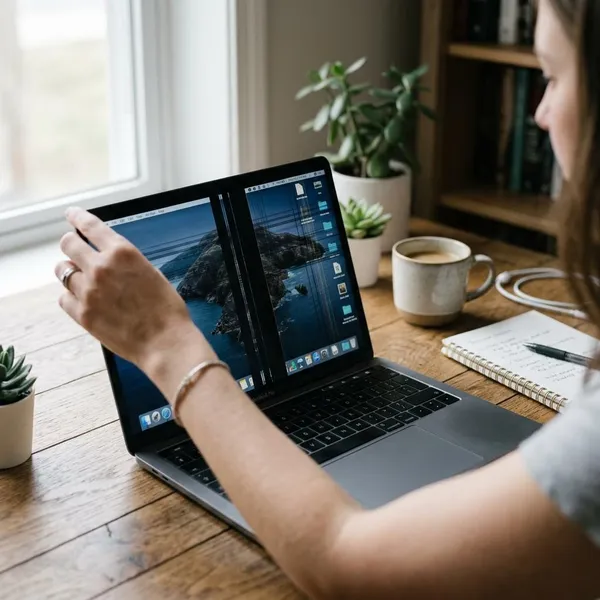
If you see laptop screen flickering lines, do not assume the screen is dead right away. First check when the lines appear, whether they change when you move the lid, and whether an external monitor shows the same problem. Those three clues usually tell you whether to try software fixes or stop before wasting time on settings that will not repair a hardware fault.

Check the severity of screen flickering lines
The pattern matters more than the shape of the line. A thin vertical stripe, a flashing band, or a shaking image can come from different causes, but the timing of the problem gives better clues.
Start with three quick checks before changing drivers or buying parts:
- Check startup: if lines appear at the logo screen or in BIOS, software is less likely.
- Move the lid gently: if the display changes with the screen angle, suspect the cable or hinge area.
- Use an external monitor: if the outside screen is clean, the built-in panel or cable is the better suspect.
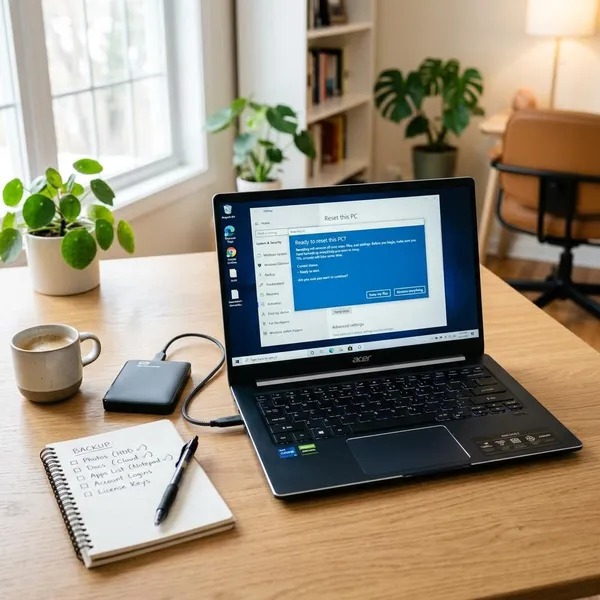
For a laptop you only need briefly to copy files or finish one task, a mild flicker may be manageable for a short time. For daily work, school, or anything important, a worsening flicker is a reason to back up files first and troubleshoot second.
Temporary flickering usually comes from software issues
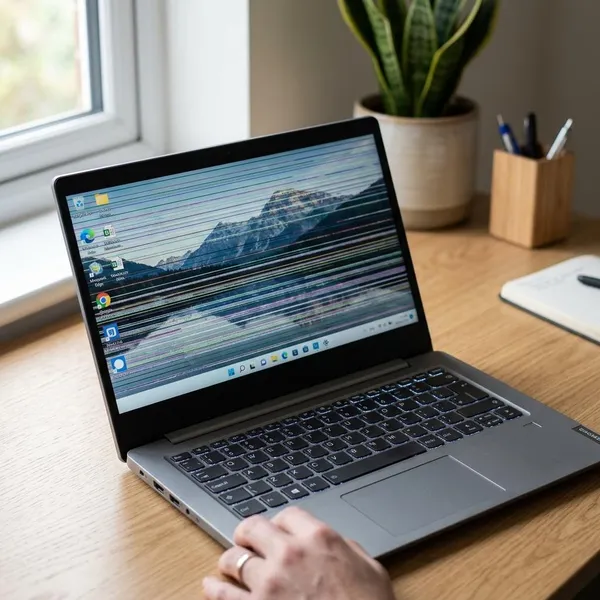
Flicker that appears only after login, after opening a certain app, or after a recent update is often software-related. The screen may look normal during startup, then begin flashing once Windows loads the graphics driver, power profile, or display utility.
A common mistake is replacing the screen too early. If the problem started right after a driver update, a Windows update, a docking setup, or software that changes brightness or color, try reversing that change before assuming the panel is damaged.
Flickering with movement points to connection problems
When the lines change as you tilt the lid, the display cable becomes a strong suspect. That cable runs through the hinge area, so repeated opening and closing can loosen it or wear it down over time.
This is different from random software flicker. If the image is clear at one angle but distorted at another, avoid repeatedly flexing the lid to "find the sweet spot." That can make a weak cable or connector worse.
Constant lines usually indicate screen damage
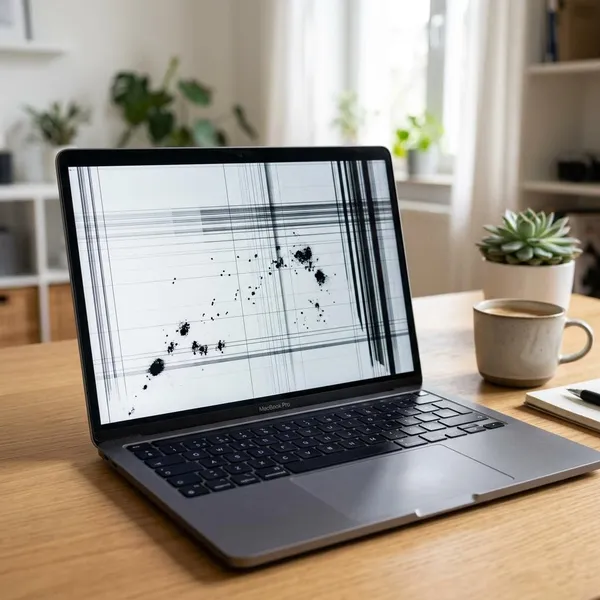
Lines that stay in the same place across every app, after restarts, and even before the operating system loads usually point to the screen panel or another hardware fault. The glass does not need to be cracked for the LCD layer or panel circuitry to be damaged.
Think about recent pressure as well as drops. A laptop squeezed in a bag, carried with objects pressing against the lid, or opened from one corner every day can develop panel or hinge stress even without obvious outside damage.
Fix laptop screen flickering lines
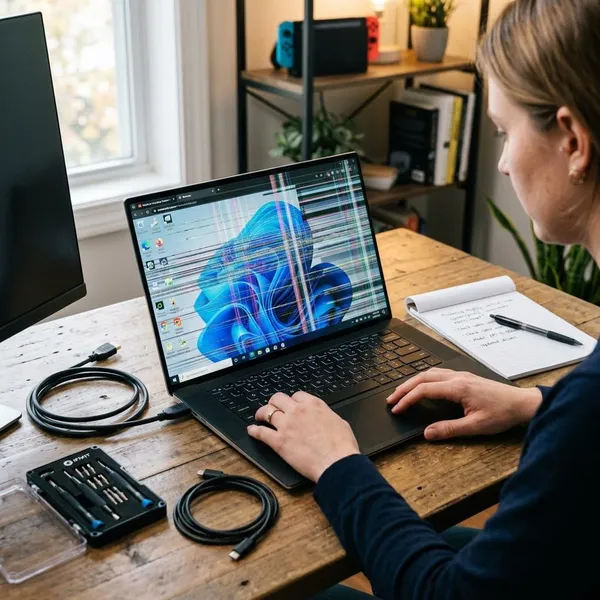
Use the least risky fixes first. Restarting, checking display settings, and reinstalling drivers are worth trying when the flicker looks software-related. If the screen reacts to lid movement or shows lines before Windows loads, skip heavy software tweaking and consider a hardware inspection.
Restart the laptop and check again
Restart once and watch the screen from the moment the laptop powers on. If the logo screen is clean but the lines appear after login, keep working through software checks. If the lines are already visible before the system loads, a restart probably will not be enough.
Also test on battery and while plugged in. Some laptops change graphics mode, brightness behavior, or power-saving display features depending on power source, and that difference can reveal the trigger.
Update or reinstall display drivers
Display drivers are worth checking when the flicker began after an update, a game install, a docking setup, or a graphics utility change. Use the laptop maker's support page when possible, especially for laptops with hybrid graphics, because generic drivers can behave unpredictably on some models.
- If the issue started after an update: try rolling the driver back.
- If the driver is old or corrupted: install the recommended version again.
- If the screen is stable in BIOS but not in Windows: a clean driver reinstall is more likely to help.
Adjust refresh rate and display settings
Set the laptop to its native resolution and recommended refresh rate. Problems sometimes begin after using an external monitor, changing gaming settings, or enabling display features that automatically adjust refresh behavior.
If your laptop has options such as adaptive brightness, panel self-refresh, variable refresh rate, or automatic graphics switching, turn them off one at a time and test. Changing several settings at once makes it harder to know what actually fixed the flicker.
Install updates and remove software conflicts
Install pending system and manufacturer updates if the flicker appears only inside the operating system. Chipset, graphics, and firmware updates can sometimes improve display stability, but avoid random driver download sites.
- Boot normally and test before opening your usual apps.
- Try Safe Mode; a stable screen there points toward software or driver conflict.
- Remove recent display tools, overlays, screen recorders, color tuners, or docking utilities.
- Test after each change instead of uninstalling everything at once.
For a laptop used only at a desk with an external monitor, you may be able to keep working while arranging repair. For a laptop carried daily, movement-related flicker should be treated more seriously because the fault can worsen while you travel.
Common causes of screen flickering lines
The same visible symptom can come from a cheap software fix or an expensive hardware problem. The table below is a quick way to match what you see with the most likely next step.
| What you notice | Most likely direction | Best next check |
|---|---|---|
| Starts after login or in certain apps | Driver, setting, or software conflict | Safe Mode, driver rollback, recent app removal |
| Changes when the lid moves | Loose or worn display cable | Stop flexing the lid and get the hinge area inspected |
| Same lines all the time | Damaged panel or persistent hardware fault | Check BIOS and compare with an external monitor |
| Also appears on an external monitor | Graphics driver, GPU, or motherboard issue | Driver reinstall first, then professional diagnosis if it continues |
Driver and software problems
Software is the best-case cause because it is often fixable without opening the laptop. Look for timing clues: the flicker starts after a system update, appears only in certain apps, disappears in Safe Mode, or changes after adjusting display settings.
Do not keep stacking "fix" utilities on top of the problem. Extra driver tools, display boosters, and registry cleaners can make troubleshooting messier instead of clearer.
Loose display connections
A loose internal display connection often begins as an occasional flash when the lid moves. Over time it can turn into colored bands, blackouts, or a display that only works at one angle.
If this is your pattern, the practical fix is usually physical: reseating or replacing the display cable. Unless you are comfortable opening laptops, this is a repair-shop job because the hinge area is easy to damage.
Damaged screen panels
A damaged panel usually keeps showing the same lines no matter what app is open. The lines may be vertical, horizontal, bright, dark, or colored, and they often remain visible after restarts.
Panel replacement makes sense when the laptop is otherwise healthy: good battery, acceptable speed, no charging problems, and a repair cost that is reasonable compared with the laptop's value. If several other parts are already failing, putting money into only the screen may not be the best choice.
Graphics hardware problems
Graphics hardware becomes a stronger suspect when both the laptop screen and an external monitor show flicker, artifacts, or lines. Freezing, crashes, heat-related glitches, or visual corruption during games can point in the same direction.
Try driver cleanup first if the issue began after software changes. If the problem happens before the operating system loads or affects every display, professional diagnosis is safer than guessing, especially on older laptops where motherboard-level repair may cost more than the device is worth.

Conclusion
The smartest move is to sort the flicker by pattern before spending money: temporary after-login flicker deserves software checks, lid-movement flicker points toward the display cable, and fixed lines usually mean hardware damage. If the laptop still works well and only the panel or cable is bad, repair can be worthwhile; if the problem affects external displays or the laptop is already aging badly, replacement may be the more sensible call.