How Can You Get Rid of Black Lines on a Laptop Screen?
Black lines on a laptop screen are worth testing before you assume the display is ruined. Start with the quick checks that separate a temporary software problem from a damaged panel, because the right fix can be as simple as changing a driver or as involved as replacing the screen.

Try these quick fixes for black lines on a laptop screen
Do the simple tests first, in this order: restart, check display settings, work on the graphics driver, then compare with another screen. That order keeps you from replacing parts before you know whether the laptop panel is actually the problem.
Pay attention to three details while testing: whether the line stays in the same place, whether it appears before Windows loads, and whether it changes when you move the lid. Those clues matter more than the line being vertical or horizontal.
Restart the laptop and check the screen again
Shut the laptop down completely, wait a short moment, then turn it back on. Do not just close the lid or use sleep mode, because that may keep the same graphics state loaded.
- Lines visible on the logo or BIOS screen: hardware becomes more likely.
- Lines appearing only after Windows loads: drivers or display settings are more likely.
- Lines gone after restart: it may have been a temporary graphics glitch.
Adjust display settings and refresh rate
Open the display settings and set the laptop screen to its recommended resolution and refresh rate. This is especially worth checking if the problem started after connecting a TV, projector, docking station, or second monitor.
A wrong refresh rate usually causes flicker, instability, or odd image behavior rather than one perfect permanent black line. Still, it is a safe check and can save you from chasing a hardware repair that is not needed.
Update or reinstall graphics drivers
If the screen looks normal during startup but shows lines after Windows loads, work on the graphics driver next. Roll back the driver if the problem began right after an update; otherwise, install a fresh driver from the laptop maker or GPU manufacturer instead of relying only on a quick automatic search.
For a work or school laptop, avoid changing several driver-related settings at once. Make one change, restart, and check the screen again so you know what actually helped.
Connect another display to test the problem
Connect a monitor or TV with HDMI, DisplayPort, or USB-C and compare it with the built-in screen. If the external display is clean while the laptop screen still has black lines, the fault is probably in the screen panel or its cable. If both displays show the same lines or artifacts, look more closely at the graphics driver, GPU, or motherboard.
This is the most useful home test before spending money. Someone who only needs the laptop at a desk for a few days may be able to keep working on an external monitor, while someone who travels daily will need a proper repair much sooner.
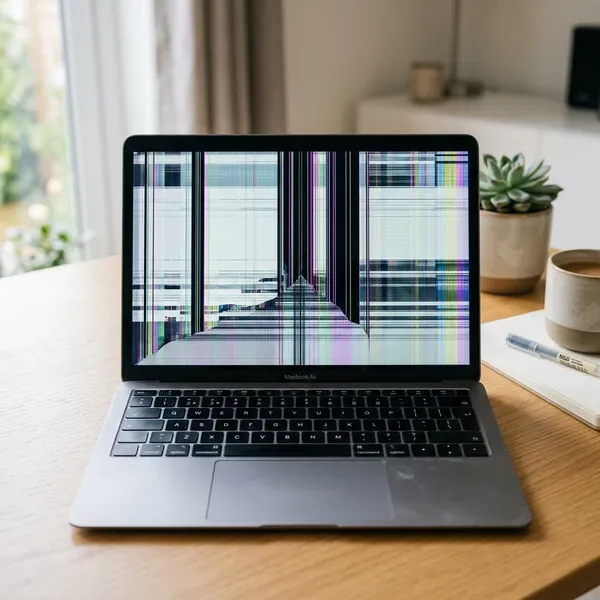
Find out why your laptop screen has black lines
Black lines usually come from one of four places: the panel, the display cable, the graphics driver, or the graphics hardware. The pattern is often more useful than the line itself.
A fixed line that never changes points in a different direction from a line that flickers when the lid moves. A line that appears only after Windows starts also tells a different story from one that is visible before the operating system loads.
Screen damage creates permanent black lines
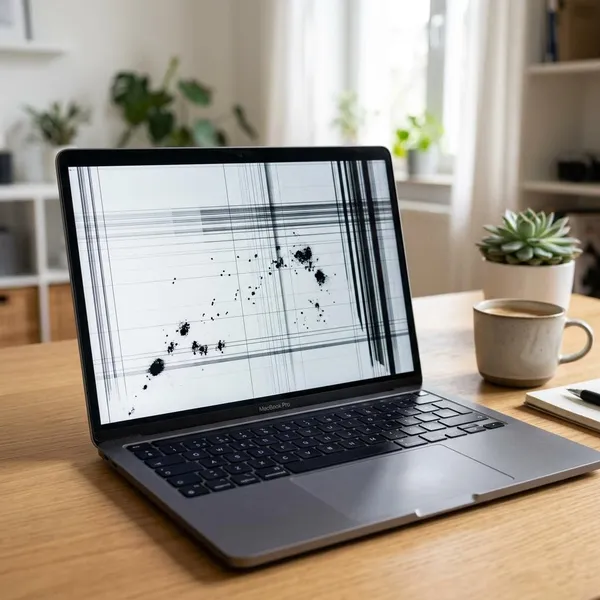
A damaged display panel often creates a line or dark strip that stays in the same place on every background. It may happen after a drop, pressure on the lid, closing the laptop on a small object, or carrying it tightly packed in a bag.
The outside glass or surface does not always need to look cracked. LCD layers can be damaged internally, and software changes will not repair that kind of fault.
Loose cables cause lines that change with movement
When the black lines change as you tilt the screen, open the lid wider, or gently move the hinge area, suspect the display cable or connector. The cable runs through the hinge and flexes every time the laptop is opened.
A cable problem may also cause flicker, brief blackouts, color shifts, or lines that disappear at one lid angle and return at another. Do not keep bending the screen repeatedly as a "test"; a few careful checks are enough, and forcing the hinge can make the damage worse.
Driver problems affect screen output
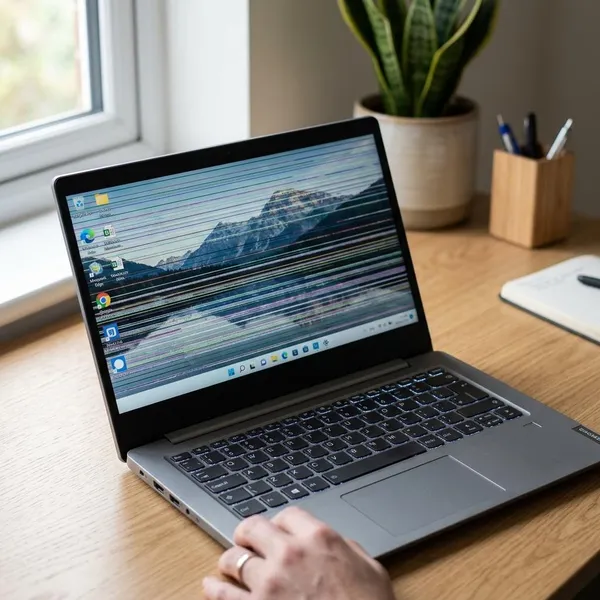
Driver trouble is more likely when the display is clean before Windows loads but becomes distorted on the desktop. A recent Windows update, GPU driver update, failed wake from sleep, or graphics control panel change can all trigger this kind of issue.
- Try Safe Mode: if the lines disappear, the normal driver is a strong suspect.
- Roll back recent updates: this is often better than installing more updates blindly.
- Use official drivers: laptop-specific drivers can matter on some models.
Graphics hardware problems affect multiple displays
If the same lines, blocks, or artifacts appear on both the laptop screen and an external monitor, the issue may be deeper than the display panel. The GPU, graphics memory, or motherboard circuitry could be involved.
This is the scenario where repair decisions become more cautious. A newer laptop used daily for demanding work may justify a professional diagnosis, but an older laptop with battery problems and a weak processor may not be worth an expensive board-level repair.
Check if the black lines are caused by the screen or the system
The goal now is to separate a screen assembly problem from a system-wide graphics problem. You can do that without opening the laptop by checking the display before Windows starts, comparing an external monitor, and seeing whether software changes affect the symptom.
Use the results together rather than trusting one clue. For example, a line that appears in BIOS and stays fixed on the laptop screen but does not appear on an external monitor strongly points to the panel or cable.
Check the lines before Windows starts
Restart the laptop and enter BIOS or UEFI if you can. The key depends on the brand, but common options include F2, F10, Delete, or Esc.
If the black lines are already visible there, Windows settings are unlikely to be the main cause. If the BIOS screen is clean but Windows later shows lines, software becomes a much better lead.
Compare the laptop screen with an external monitor
| What you see | Most likely direction | What to do next |
|---|---|---|
| Lines only on the laptop screen | Panel or display cable | Check lid movement, then consider screen or cable repair |
| Lines on both screens | Driver, GPU, or motherboard | Test Safe Mode and drivers before approving hardware repair |
| External monitor is clean and lid movement changes the lines | Display cable or connector | A technician can inspect the hinge area and reseat or replace the cable |
Test the display after changing software settings
Change one software item at a time: recommended resolution, recommended refresh rate, driver rollback, then clean driver reinstall. Restart after each meaningful change.
A common mistake is changing every display setting at once and then not knowing which action mattered. If the laptop is your main work device, take a photo of the line pattern before you start so you can compare whether it actually improved.

Decide if your laptop screen needs repair
After the tests, the repair choice should be much clearer. Panel damage, cable faults, software issues, and graphics hardware failures all lead to different decisions.
Before paying for parts, think about how the laptop is used. A home laptop that sits on a desk can sometimes be used with an external monitor for a while, but a laptop carried to classes, meetings, or travel is much harder to live with if the built-in screen is unreliable.
Replace the screen for damaged display panels
Screen replacement makes sense when the line is fixed, appears before Windows loads, does not react to driver changes, and does not show on an external monitor. That combination usually means the panel itself is the failed part.
It is usually worth getting a quote if the laptop is still fast, the battery is acceptable, and the rest of the machine fits your needs. If the device is already slow, overheating, or near the end of its useful life, compare the repair price with replacing the laptop instead.
Repair cables for connection problems
A cable or connector repair is the better guess when the lines flicker, shift, or disappear as the lid angle changes. The repair may involve reseating the connector, replacing the display cable, or fixing wear around the hinge.
- Do not keep forcing the lid angle to find a temporary "good spot."
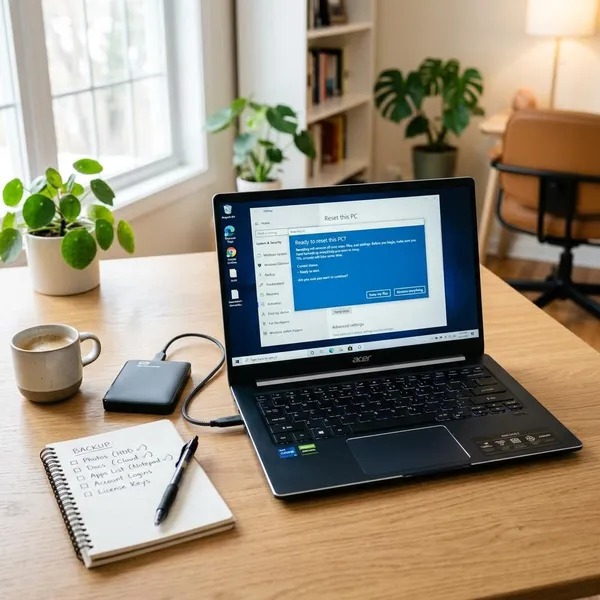
- Back up files first if the display sometimes cuts out completely.
- Use a technician if you are not comfortable opening thin screen bezels and hinges.
Fix software issues without replacing hardware
If the lines appear only after Windows starts, disappear in Safe Mode, or change after driver work, focus on software before buying parts.
- Set the native resolution and recommended refresh rate.
- Roll back the graphics driver if the problem began after an update.
- Install a clean driver from the official laptop or GPU support page.
- Restart and test before making the next change.
This is the best-case path because it costs nothing except time. It is also the easiest path to misread, so avoid assuming the screen is fixed until the laptop has been restarted and used normally for a while.
Get professional help for graphics hardware failures
Get professional diagnosis if both the laptop display and an external monitor show the same lines, especially if you also see crashes, freezing, overheating, or distorted shapes during video or games.
Board-level graphics faults can be expensive and are not always worth repairing. Before approving a major repair, back up important files and ask whether the quote is for a confirmed fault or only a suspected one.
Conclusion
The smartest first move is not to replace the screen immediately, but to find the pattern: before Windows or after Windows, laptop screen only or every display, fixed line or movement-related flicker. If the tests point to software, repair is usually unnecessary; if they point to the panel or cable, a targeted repair can make sense; if both displays are affected, think carefully before spending money on an older laptop.