Why Are There Horizontal Lines on Your Lenovo Screen?
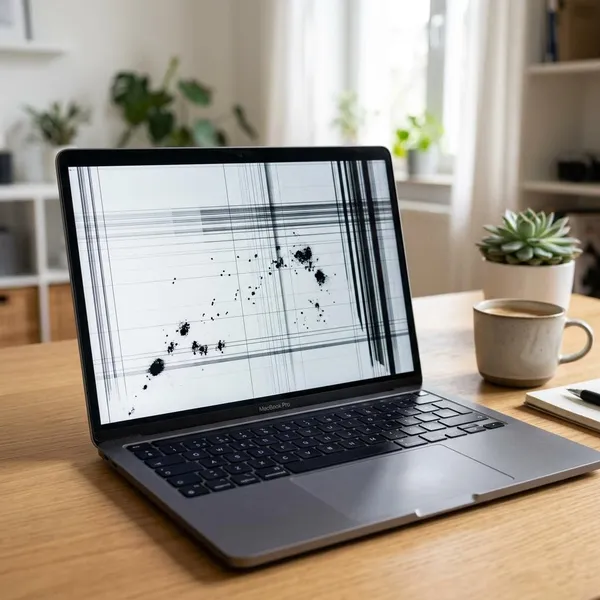
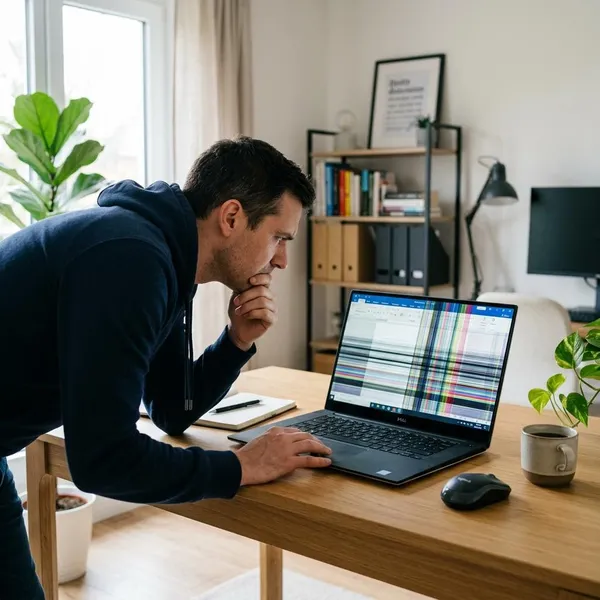
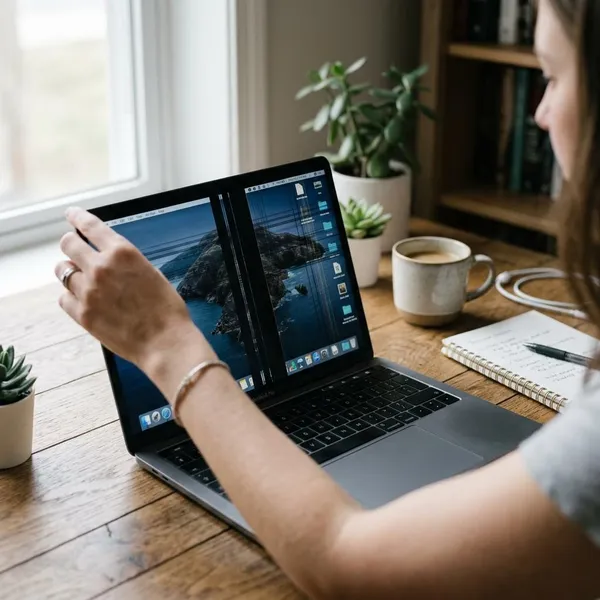
If you see lenovo laptop screen horizontal lines, do not assume the screen is dead right away. First check when the lines appear: only after Windows loads usually points to software, lines visible from startup often point to hardware, and lines that change when you move the lid often suggest a cable issue. A few quick checks can usually tell you whether it is worth trying fixes at home or booking a repair.
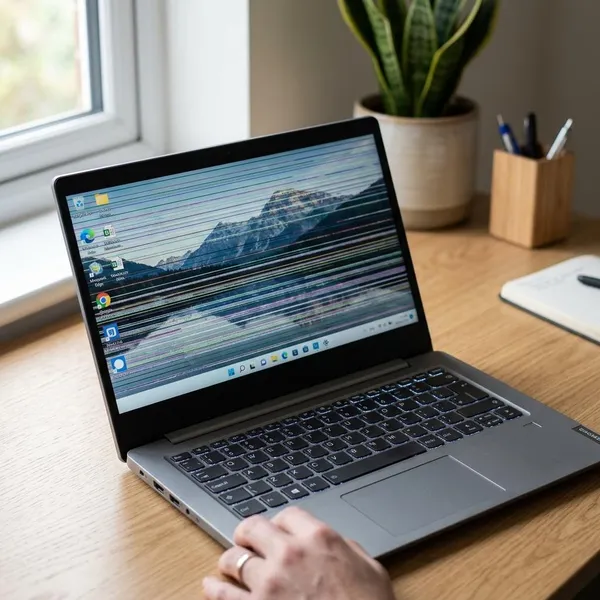
Are horizontal lines on a Lenovo laptop screen serious
They can be minor, but the pattern matters more than the line itself. A temporary line after sleep mode is very different from a fixed stripe that appears before Windows starts.
| What you notice | Most likely direction | What to check first |
| Lines appear only after login | Driver, Windows, or display setting issue | Restart, update graphics driver, check refresh rate |
| Lines stay in the same place from startup | Screen panel damage | Check BIOS and compare with an external monitor |
| Lines change when the lid moves | Loose or damaged display cable | Test different lid angles carefully |
| Lines also appear on an external monitor | Graphics hardware or system-level software | Reinstall driver and consider professional diagnosis |
Temporary lines usually come from software problems
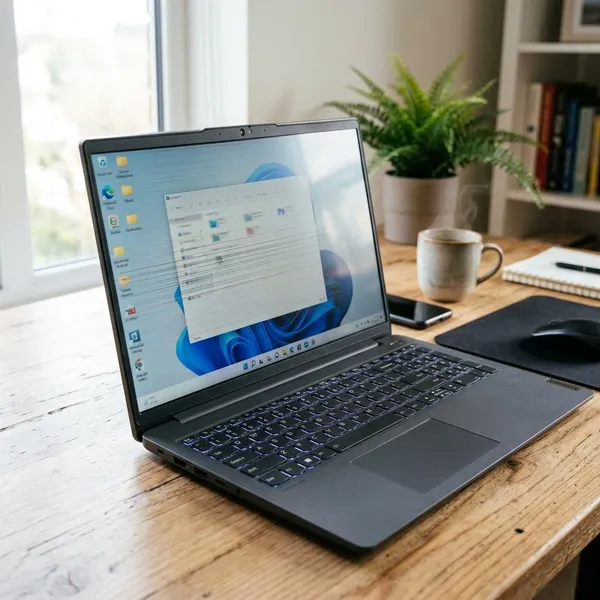
Temporary lines are the least worrying case. If the display looks normal on the Lenovo logo screen but starts showing lines after Windows loads, begin with software: graphics drivers, Windows updates, display scaling, resolution, and refresh rate.
This is common after a laptop wakes from sleep, switches between apps, or has recently been connected to another monitor. For a student or office user who only sees the lines after long sessions, a restart and driver check should come before any repair quote.
Permanent lines usually point to display damage
Fixed lines that never move are more serious, especially if they appear during startup, in BIOS, or on the Lenovo splash screen. That usually means the LCD panel itself is failing or has been damaged internally.
The outside glass can still look fine. Pressure from a packed bag, a twisted lid, or closing the laptop with something small on the keyboard can damage the inner display layers without leaving an obvious crack.
Moving lines usually suggest cable problems
Lines that flicker, shift, disappear, or get worse when you adjust the lid often point to the display cable near the hinge. That cable bends every time the laptop opens and closes, so daily commuting or frequent lid movement can eventually expose a weak connection.
If the screen works at one angle but breaks up at another, do not order a replacement panel first. A cable or connector inspection is the more sensible next step.
Try these fixes for Lenovo laptop screen horizontal lines
Start with the checks that give the most information and cost nothing. The priority is simple: restart fully, watch when the lines appear, update the graphics side, correct the display settings, then compare the laptop screen with another display.
- Restart fully and watch the screen from power-on.
- Update or reinstall the correct graphics driver.
- Set the recommended resolution and supported refresh rate.
- Connect an external monitor or TV and compare the image.
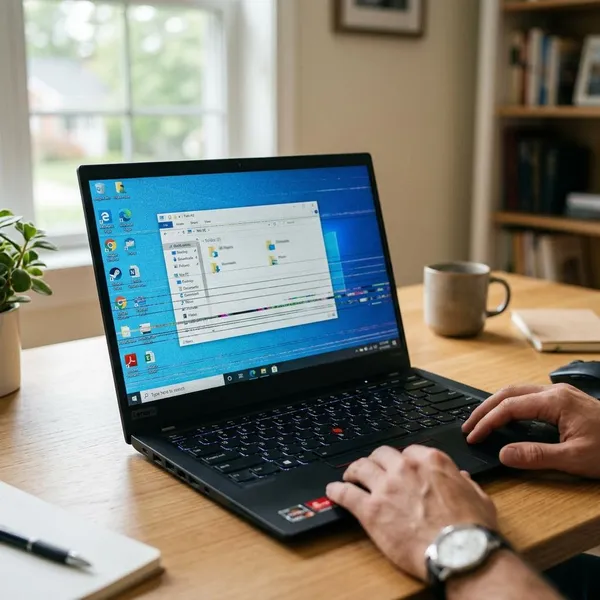
Restart the laptop and check the display
Shut the laptop down completely instead of using sleep or hibernate, wait a short moment, then power it on again. Watch the Lenovo logo, the login screen, and the desktop separately.
If the lines are already visible before Windows loads, do not spend too much time changing apps or browser settings. If the screen is clean at startup and the lines appear later, software becomes a much more realistic cause.
Update drivers and Windows settings
A graphics driver update can fix Lenovo screen lines when the problem began after a Windows update, a driver rollback, or a failed installation. Use Lenovo Support for your exact model first, especially on laptops with customized Intel, AMD, or NVIDIA graphics packages.
- Install pending Windows updates.
- Update the graphics driver from Lenovo or the chip maker.
- Restart after the update, even if Windows does not insist.
- Test normal use, not just the desktop.
If the lines change, reduce, or disappear after the driver work, software was probably involved. If nothing changes at all, the screen, cable, or graphics hardware deserves more attention.
Adjust resolution and refresh rate
Open Windows display settings and choose the recommended resolution for the built-in screen. Then check advanced display settings and use a refresh rate the panel actually supports.
This matters most if the laptop was recently used with a dock, projector, TV, or external monitor. A wrong setting can make the image look unstable even when the screen hardware is still fine.
Test with another display
Connect the Lenovo laptop to a monitor or TV with HDMI, USB-C, or another supported output. Keep the laptop screen on and compare both displays at the same time.
If the external display looks normal while the laptop panel still has horizontal lines, the built-in screen or display cable is the likely area to inspect. If both displays show similar lines, think beyond the screen: driver, GPU, motherboard, or heat-related graphics trouble may be involved.
Find out what is causing the screen lines
After the basic fixes, the cause usually becomes clearer from how the lines behave. Do not judge only from one screenshot or one moment; move the lid gently, check startup, and compare an external display before deciding what part has failed.
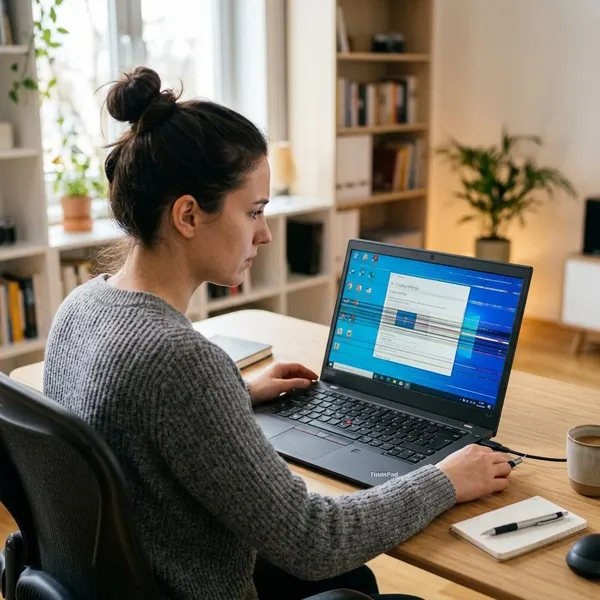
Check for display cable problems
Open and close the lid slowly while watching the lines. If they react to movement, the internal display cable or its connector is a strong suspect.
A cable issue often feels random at first: the screen may look fine at the kitchen table, then flicker badly after you adjust the lid on a train, sofa, or crowded desk. That kind of angle-sensitive behavior fits a connection problem better than a permanently damaged panel.
Check for screen panel damage
Screen panel damage is likely when the lines are fixed in the same place, visible before Windows loads, and unchanged by driver updates or display settings. This is also more likely after a drop, pressure in a bag, or closing the lid on an object.
A useful check is to take a photo of the screen on two different days. If the exact same line pattern is still there across startup, Windows, and BIOS, repeated software fixes are unlikely to help.
Check for graphics related issues
Graphics-related problems become more likely when the same artifacts appear on the laptop screen and an external display. They may also show up during gaming, video editing, streaming, or other tasks that put more load on the graphics system.
- If Safe Mode looks normal, software is still possible.
- If BIOS and an external monitor both show lines, hardware is more concerning.
- If lines appear only under heavy load, heat or graphics hardware may be involved.
At this point, avoid replacing the laptop screen based on the built-in display alone. The fault may be deeper than the panel.
Decide if your Lenovo screen needs repair
Repair makes sense when the symptom is repeatable and the easy fixes have not changed anything. The main decision is whether you are looking at a panel replacement, a cable repair, or a broader hardware diagnosis.
For temporary use, you may be able to keep working with an external monitor while you back up files and compare repair costs. For a laptop used every day for work or school, do not wait until the display becomes unreadable; screen and cable problems can become more disruptive without much warning.

Replace the screen for permanent panel damage
Replace the screen when the built-in panel has fixed horizontal lines, the external monitor looks normal, and the issue appears before Windows loads. That combination points strongly toward panel damage rather than a driver problem.
Before approving the repair, confirm the exact Lenovo model, screen size, resolution, and warranty status. Lenovo laptops can use different panels even within similar model names, so guessing the part can turn a simple repair into a frustrating one.
Repair connections for cable issues
If moving the lid changes the lines, ask for the display cable and hinge-area connectors to be checked first. Replacing the panel without checking the cable can waste money if the connection is the real fault.
A technician may reseat the connector, inspect the cable path, or replace the cable. This is especially worth checking on older laptops or machines that are opened and closed many times a day.
Get professional help for hardware failures
Get professional help if both the laptop screen and an external display show the same lines, if the laptop recently overheated, or if the issue started after a drop or liquid exposure. GPU and motherboard faults are harder to confirm safely at home.
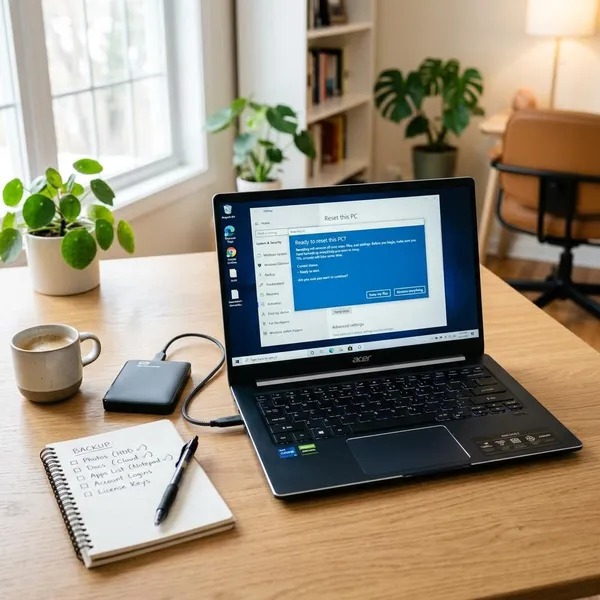
Back up important files before service. Even when the fault is "only" the display, repair may involve disassembly, downtime, or parts ordering.
Conclusion
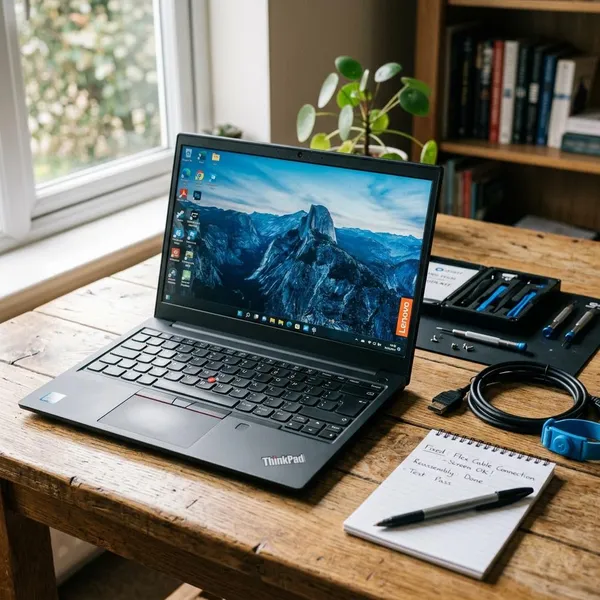
The smartest move is to diagnose the pattern before paying for parts: software-like lines usually appear after Windows loads, cable issues react to lid movement, and panel damage stays fixed from startup. If the external monitor is clean, focus on the built-in screen and cable; if the external monitor shows the same problem, get the graphics side checked instead. Back up your files early and choose repair based on the test results, not on the lines alone.