How do I reformat my Acer laptop safely and reinstall Windows
If you need to reformat your Acer laptop, first decide one thing: does Windows still start? If it does, use Reset this PC; if it does not, try the recovery environment; if recovery fails or you want the cleanest wipe, use a Windows installation USB. Back up anything important before choosing Remove everything, because that option can make file recovery difficult.
Prepare your Acer laptop for reformatting
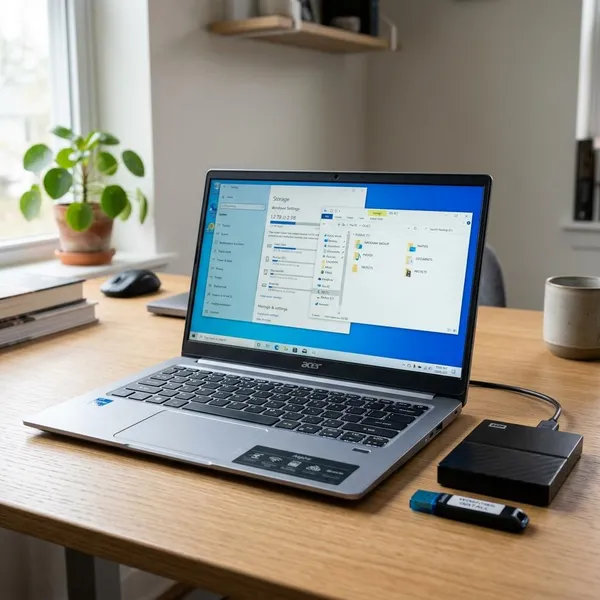
Preparation matters more than the reset button you choose. The safest order is simple: save your files, make sure you can sign back into your accounts, then keep the laptop powered and connected while Windows reinstalls.
If the laptop is staying with you, a lighter reset may be enough. If you are selling it, giving it away, or dealing with a serious malware problem, treat the process more carefully and assume anything left on the device could be removed.
Back up files you want to keep
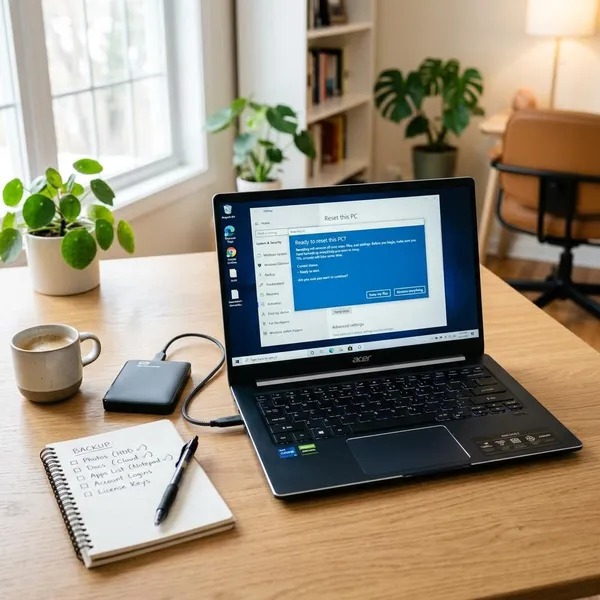
Copy your important files to an external drive or cloud storage before starting. Check the obvious folders first: Desktop, Documents, Downloads, Pictures, and Videos. Then look for files saved in less obvious places, such as project folders on the C drive, browser downloads, tax documents, school work, or exported app data.
- Open a few backed-up files to confirm the copy worked.
- Check every user account if more than one person uses the laptop.
- Look inside important apps such as email, accounting, notes, or photo software for local databases or export options.
Save important passwords and account details
A fresh Windows setup can sign you out of nearly everything, so do not rely on memory. Make sure you know the password for your Microsoft account, email, cloud storage, password manager, and any paid software you need to reinstall.
If device encryption or BitLocker is enabled, save the recovery key before making major changes. Also check that your two-factor authentication method still works from another device, especially if your phone is needed to approve sign-ins.
Plug in the charger and connect to the internet
Keep the charger plugged in for the whole reset or installation. A power loss during reinstall can leave the laptop stuck halfway through the process.
Internet access is not always required for every step, but it helps with Cloud download, Windows activation, driver updates, and Microsoft account sign-in. If your Wi-Fi is unreliable, move closer to the router or use Ethernet if your Acer model supports it.
Reformat your Acer laptop with Reset this PC
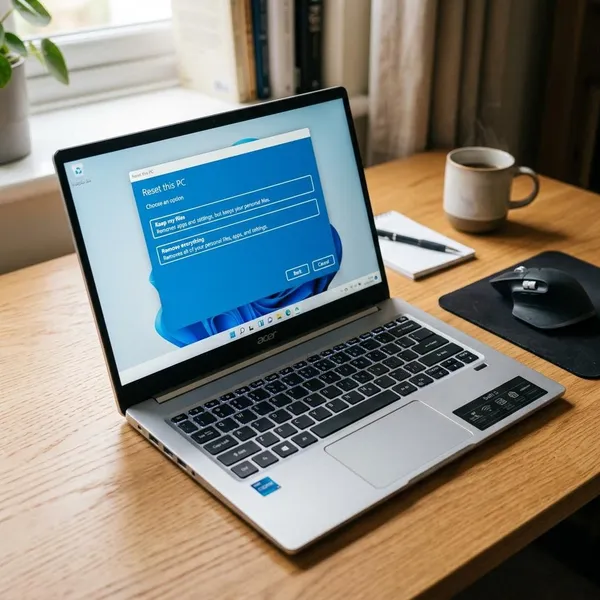
Reset this PC is the best starting point when Windows still loads. It is built into Windows, does not need a USB drive, and gives you clear choices about keeping files or wiping the device.
Use this method for a slow laptop, broken updates, repeated app crashes, or a system that feels cluttered but still opens Settings. For a laptop you plan to keep, start here before doing a full USB clean install.
Open the Windows recovery settings
In Windows 11, open Settings > System > Recovery. In Windows 10, open Settings > Update & Security > Recovery. Find Reset this PC, then choose Reset PC or Get started.
If you cannot find the menu, search Windows for reset this pc. Restart the laptop once first if it is still usable but behaving strangely, because that can clear temporary problems before the reset begins.
Start Reset this PC
Windows will ask you to choose between Keep my files and Remove everything. Choose based on what you are trying to solve, not just on which option sounds safer.
| Situation | Better choice | Why |
|---|---|---|
| You are keeping the laptop and mainly want to fix Windows problems | Keep my files | It removes apps and settings while trying to preserve personal files. |
| You are selling, donating, or giving away the laptop | Remove everything | It is the better privacy choice, especially with drive cleaning enabled. |
| You suspect serious malware or deep system damage | Remove everything or a clean USB install | A fuller wipe is less likely to carry old problems forward. |
Choose your reset and reinstall options
For the reinstall source, Cloud download gets a fresh Windows copy from Microsoft and is often better if system files may be damaged. Local reinstall uses files already on the laptop and can be faster if your internet is slow or limited.
If you choose Remove everything, Windows may ask whether to clean the drive. A quick removal is usually enough if you are keeping the laptop. A fuller clean takes longer but is the more sensible choice before passing the laptop to someone else.
Reformat your Acer laptop if Windows will not start
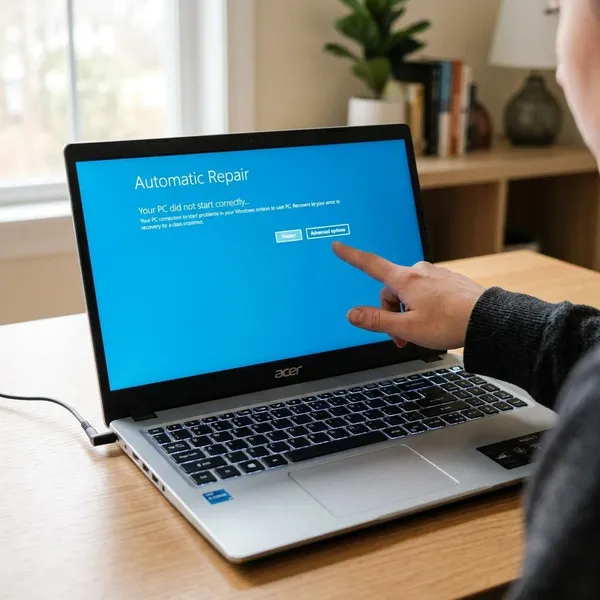
If Windows will not boot, try the Windows Recovery Environment before moving to a USB installer. This is useful for boot loops, failed updates, blue screens, or a laptop that gets stuck before the sign-in screen.
This method is a good middle step: less technical than a clean install, but still able to reinstall Windows when the normal desktop is unavailable.
Open the Windows recovery environment
Windows may open recovery automatically after several failed startups. If it does not, turn the laptop on and interrupt startup when the Windows loading screen appears; repeating this a few times often triggers recovery mode.
If the sign-in screen still appears, hold Shift, select the power icon, and choose Restart. When the recovery screen opens, go to Troubleshoot.
Start Reset this PC from recovery
Choose Troubleshoot > Reset this PC. You should see familiar options such as Keep my files and Remove everything.
If you are only trying to recover from a bad update and the laptop is staying with you, Keep my files may be worth trying first. If the device is being handed to someone else, or the system is badly infected or unstable, Remove everything is the safer call.
Recovery may ask for an administrator password. If you cannot provide it and cannot recover the account, a USB clean install is usually the more reliable way to wipe the laptop and reinstall Windows.
Follow the reset process to reinstall Windows
Follow the prompts and let the reset finish without interruption. If Cloud download is available and your internet is stable, it is often the better choice when startup files are damaged.
If the reset fails once, you can retry after a full shutdown. If it fails again, stop repeating the same step and move to a Windows installation USB instead. Repeated failed resets usually mean the recovery files are damaged or the current installation cannot be trusted.
Reformat your Acer laptop with a clean Windows install
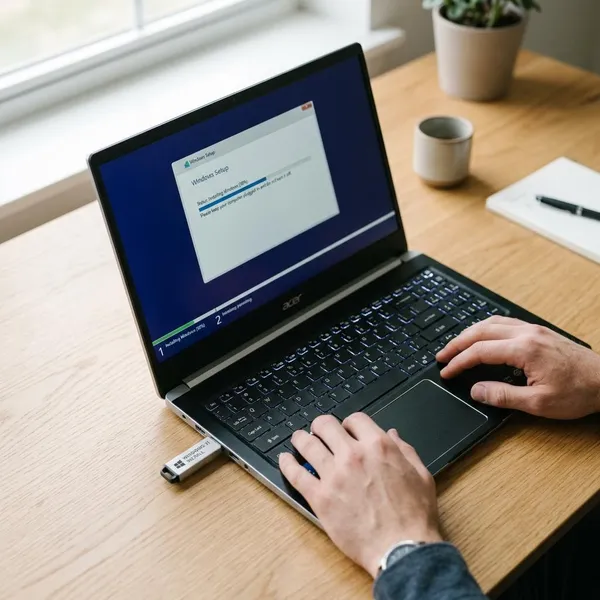
A clean Windows install is the strongest option when Reset this PC fails, recovery will not open, or you want the cleanest possible start. It takes more care because you choose the installation drive and partitions yourself.
This is the better route for a high-risk situation, such as repeated failed resets, heavy malware concerns, or a laptop that has been unstable for a long time. For a simple performance refresh on a laptop that still works, Reset this PC is usually easier.
Create a Windows installation USB
On another working Windows computer, download Microsoft's official Media Creation Tool and use it to create a Windows installation USB. Use a USB flash drive with at least 8 GB of space, and remember that the tool will erase the drive while creating the installer.
Choose the correct Windows version if asked. In most cases, the recommended settings are fine, especially when reinstalling the same Windows edition that came with the Acer laptop.
Boot your Acer laptop from the USB
Insert the USB installer, restart the Acer laptop, and press F12 during startup to open the boot menu on many Acer models. If the USB option does not appear, enter BIOS or UEFI with F2 and check whether the boot menu is enabled.
- Try another USB port if the installer does not load.
- Select the USB drive only for this boot instead of changing more BIOS settings than needed.
- Choose your language and keyboard when the Windows installer appears.
Remove the old Windows installation
When Windows Setup asks where to install Windows, choose Custom: Install Windows only. If your goal is a full wipe, delete the old Windows-related partitions on the main internal drive until the space is unallocated, then install Windows there.
This is the step where mistakes are hardest to undo. If your laptop has more than one drive, or you see a partition that may contain personal data, pause before deleting anything. Do not guess if you are unsure which drive is the Acer's internal system drive.
Finish setting up your Acer laptop after reformatting
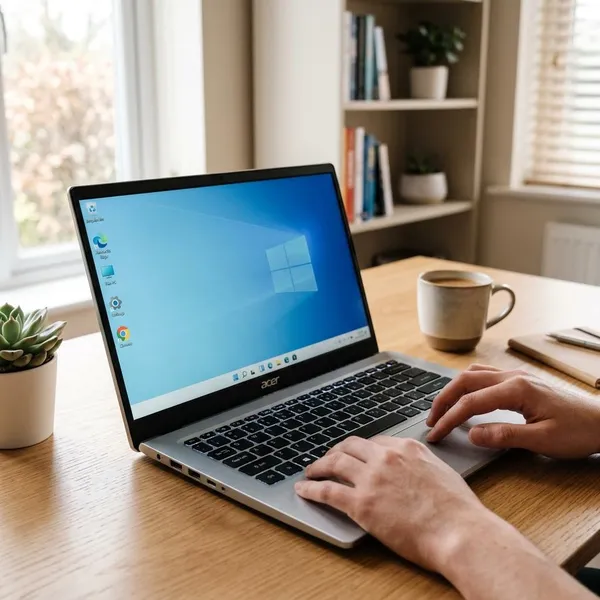
After Windows returns, do not judge the laptop too quickly. A fresh install may still be missing updates, drivers, and apps, so Wi-Fi, Bluetooth, touchpad gestures, brightness keys, or audio may not behave normally yet.
Set it up in a clean order: update Windows first, check hardware, then restore only the files and apps you actually need.
Run Windows Update
Open Settings > Windows Update and install all available updates. Restart when asked, then check again until no major updates remain.
This step can fix more than security issues. Windows Update often installs driver updates and hardware support that a fresh reset or clean install may not include right away.
Check your drivers and devices
Test the parts you use every day: Wi-Fi, Bluetooth, speakers, microphone, webcam, keyboard shortcuts, touchpad, USB ports, display brightness, and battery charging. Then open Device Manager and look for warning icons or unknown devices.
If something is missing, use Acer's official support page for your exact model. Do not install random driver packs; they often create more trouble than they solve. Your model number is usually on the bottom label, in BIOS, or on Acer support tools if they are installed.
Restore your files and apps
Restore your personal files after updates and basic hardware checks are finished. Start with the folders you actually use, then open a few documents, photos, or videos to make sure the backup copied correctly.
- Install essential apps first, such as your browser, office software, cloud storage, printer tools, and communication apps.
- Wait for cloud sync to finish before moving large folders around.
- Skip old clutter, especially utilities, trial software, and apps you have not used in months.
If the laptop is for daily work or school, reinstall slowly and test as you go. If it is just being prepared for sale or donation, do not restore personal files at all; finish updates, confirm Windows activates, then leave it clean for the next owner.
Conclusion
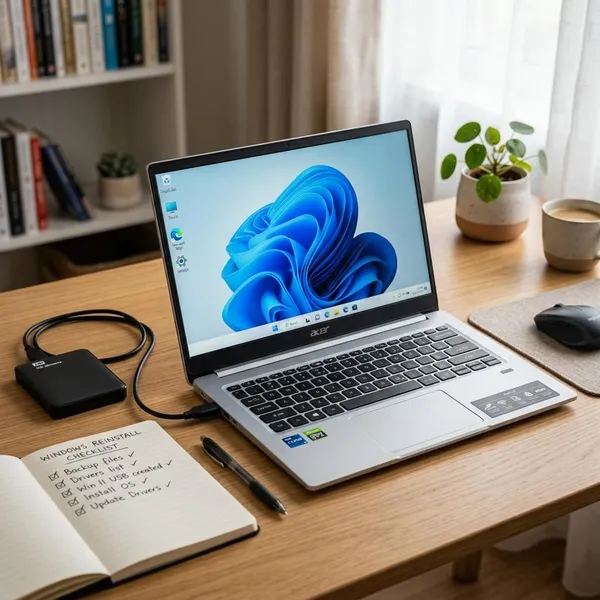
The safest path is to match the method to the laptop's condition: use Reset this PC when Windows still works, use recovery when it will not boot, and use a USB clean install when the built-in tools fail or you need a deeper wipe. The one step not to rush is the backup, because choosing the wrong wipe option is much harder to fix than spending ten extra minutes checking your files first.